

Account setup
Create your WRMS Pro login, confirm your email address and protect the account with two-factor authentication.
Your WRMS Pro account is your personal login. The workshop itself is created straight after, in Workshop setup. If a colleague has already invited you to their workshop, use the link in their invitation email instead — see Joining by invitation.
Before you start
- An email address you can open now. WRMS Pro sends a verification link to it.
- A password that meets the rules below.
- For two-factor authentication: an authenticator app on your phone (Google Authenticator, Microsoft Authenticator, Authy or similar).
Create your account
Open the sign-up page
Go to the WRMS Pro website and choose Start free trial, or open the sign-up page directly. A short human-verification check may appear before the form submits.
Enter your details
Enter your name, email address and a password, then submit the form.
Confirm your email address
WRMS Pro shows the address it sent the link to. Open the email and select the link. You are signed in and taken to workshop set-up.
If the email has not arrived after a few minutes, check junk or spam, then use resend on the verification page. A short wait is enforced between resends.
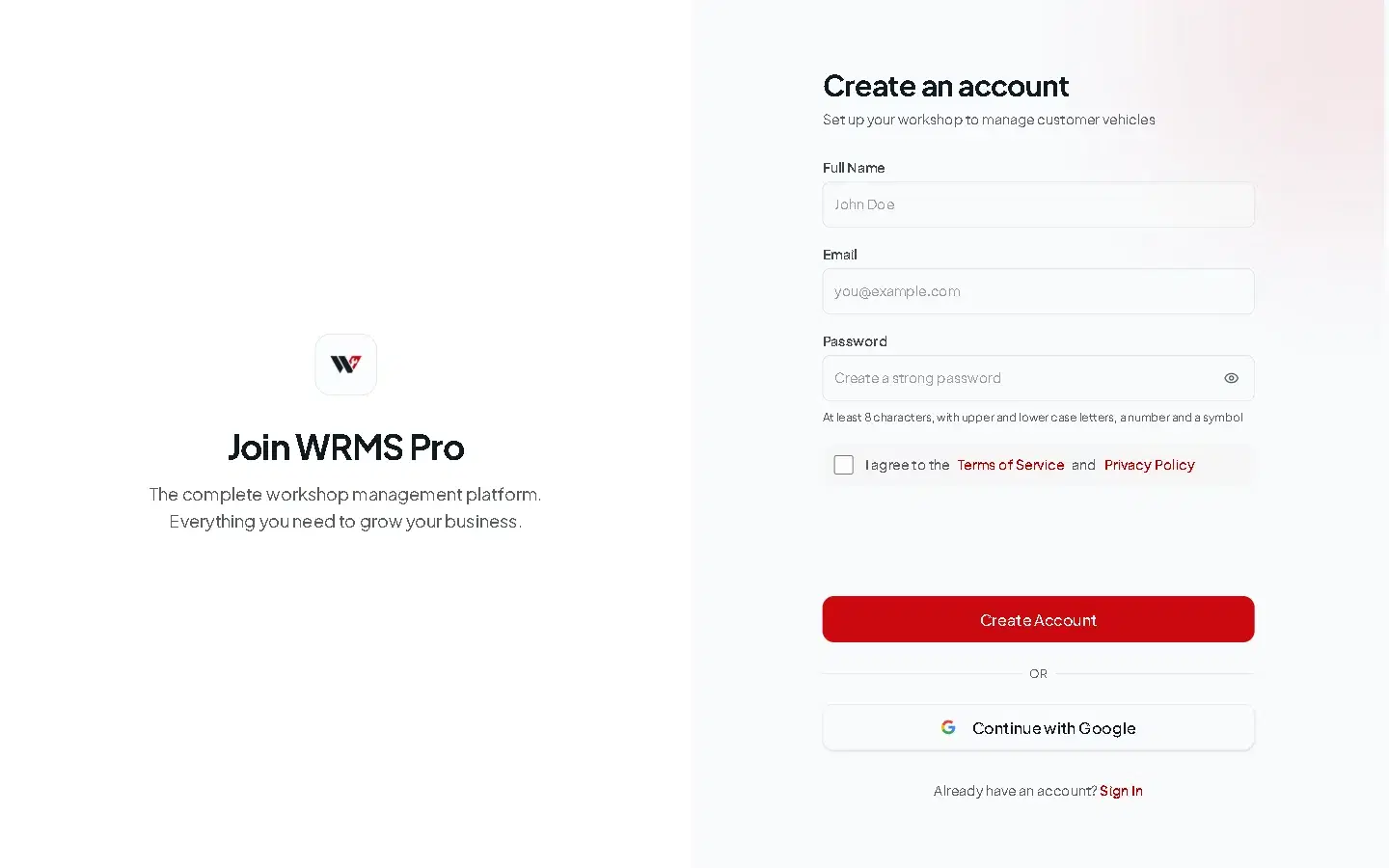
Password rules
WRMS Pro checks passwords when you sign up, reset or change them. A password must:
- be between 8 and 128 characters long;
- include at least one uppercase letter, one lowercase letter, one number and one symbol.
Signing in with Google
Select Continue with Google on the sign-in or sign-up page to use your Google account instead of a password. Use the same method every time: an account created with email and password signs in with email and password, and one created with Google signs in with Google.
Turn on two-factor authentication
Two-factor authentication (2FA) asks for a six-digit code from your phone each time you sign in, so a stolen password alone is not enough. Owners and anyone with access to billing should use it.
Open Settings → Account and find Two-Factor Authentication.
Select Enable 2FA and enter your password.
Scan the QR code with your authenticator app, then enter the code it shows to confirm.
Save the backup codes somewhere safe and offline. Each one works once, if you lose your phone.
From then on, WRMS Pro asks for a code after your password. To turn it off, select Disable 2FA and enter your password.
Joining by invitation
When a workshop invites you, you receive an email with a link. The invitation is for the address it was sent to and expires after seven days.
- Open the link and create your account with the same email address the invitation was sent to.
- Verify your email as above.
- WRMS Pro shows You've been invited. Select Join to join that workshop, or Create my own workshop instead.
Changing your email or password later
Both are in Settings → Account.
- Email: enter the new address and your current password. WRMS Pro emails a confirmation link to the new address; the change happens only when you open it. Your old address is told about the change, and you are signed out on other devices.
- Password: enter your current password and the new one twice.
Troubleshooting
- No verification email — see Login problems.
- "Too many attempts" — you have tried to sign in several times in a few seconds. Wait a moment and try again.
Still need help?
Email support@wrmspro.com or use the contact form. Signed-in users can also send a request from Settings → Support.
How WRMS Pro works
The records WRMS Pro is built on — workshop, customer, vehicle, work order, quote, inspection, invoice and payment — and how each one leads to the next.
Workshop setup
Name your workshop, choose sample data or a clean start, then fill in the details that appear on every quote and invoice.