

Workshop setup
Name your workshop, choose sample data or a clean start, then fill in the details that appear on every quote and invoice.
Straight after you confirm your email, WRMS Pro asks you to set up your workshop. The first part takes under a minute. The rest is settings you can fill in at your own pace, but it is worth doing before you send your first invoice, because these details are printed on it.
Before you start
- Your workshop's trading name, address, phone and email.
- Your logo as a JPG, PNG, WebP or SVG file, up to 2 MB.
- Your normal hourly labour rate.
- Whether you quote prices including or excluding GST.
Step 1: Create the workshop
Name it
WRMS Pro suggests a name. Change it to your trading name — you can edit it later in Settings → Company.
Choose how to start
- Explore Demo loads sample customers, vehicles, jobs, a quote and an inspection, all marked Sample:. Good for looking around before you commit.
- Clean Slate starts empty. Choose this when you are ready to enter real customers.
Sample data can be removed later in one step from the Sample data card on the dashboard. It deletes only the records created during set-up, never your own.
Start your trial
A new workshop starts on a 14-day free trial with full access. See Subscription and plans for what happens when it ends.
WRMS Pro also adds six ready-made labour presets (such as Oil change and Front brake pads) so you can build your first job quickly. Edit or remove them in Labor Presets.
Step 2: Fill in your details
Open Settings from the sidebar. The settings you need first are below, in the order we suggest.
| Where | What to set | Why it matters |
|---|---|---|
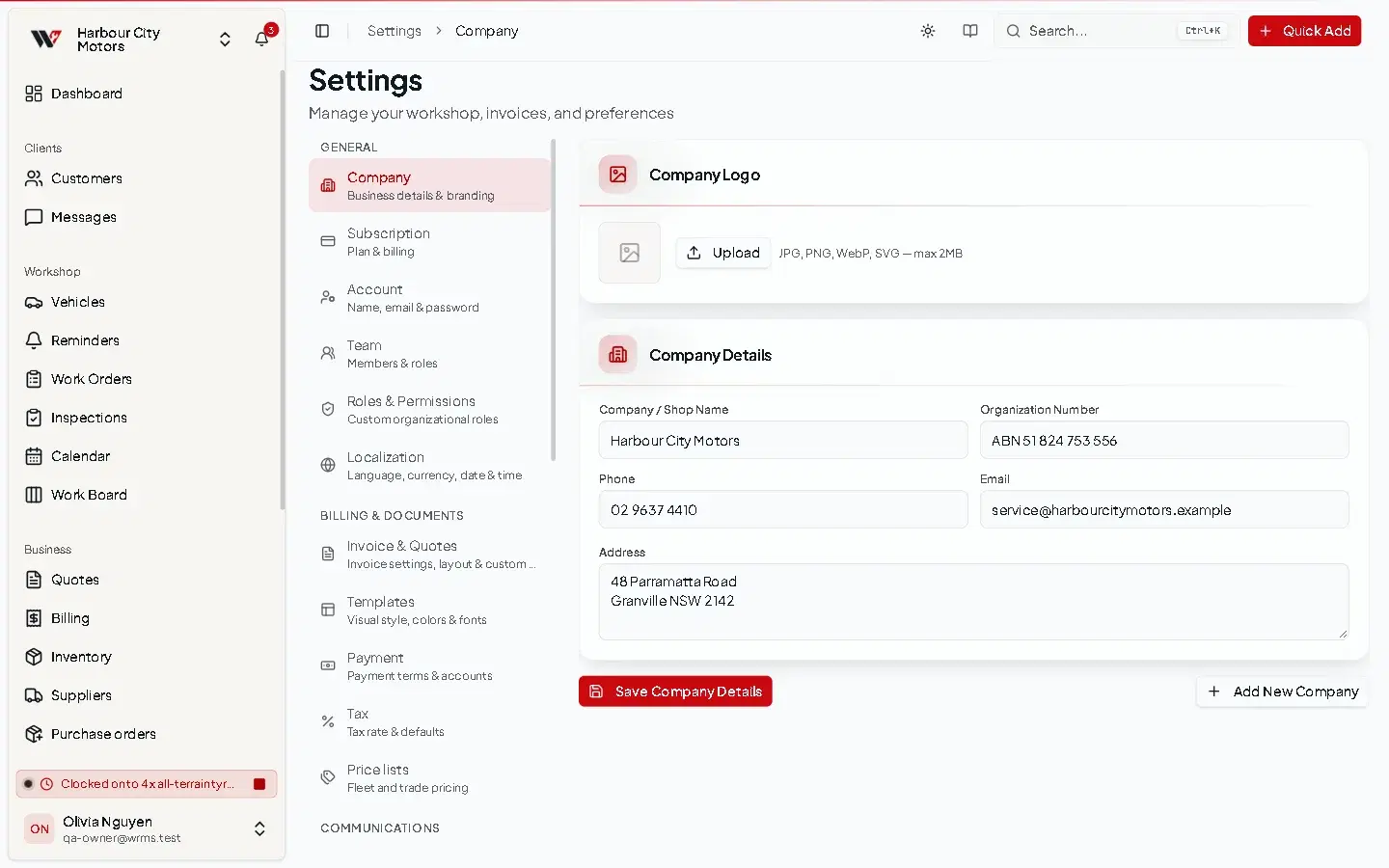
| Settings → Company | Logo, company / shop name, Organization Number (use it for your ABN), phone, email, address. Service Type: Automotive. | Printed on quotes, invoices and shared links. |
| Settings → Localization | Language, currency, date and time format, time zone, week start day, default phone country code (+61 for Australia). | Money, dates and phone numbers display correctly. |
| Settings → Tax | Tax mode (inclusive or exclusive), tax label (GST) and rate (10%). | Every quote and invoice total. See GST and tax. |
| Settings → Workshop | Default technician, default labour rate per hour, metric or imperial units, default stock unit, working day start and end. | New work orders are pre-filled from here. |
| Settings → Invoice | Invoice and quote number format, next invoice number, due days, quote validity, what appears on the invoice, footer text, parts markup. | Your paperwork looks right from day one. See Invoice settings. |
| Settings → Providers | Email sender, and optionally SMS, WhatsApp and Telegram. | Needed before you can message customers. See Customer notifications. |
Carrying on from another system?
Set Next Invoice Number in Settings → Invoice to follow on from your last invoice, so your numbering has no gap or overlap.
Automotive or marine
Settings → Company → Service Type switches the wording across WRMS Pro. Automotive uses vehicles, registration and odometer. Marine uses vessels and engine hours. This documentation is written for automotive workshops.
Who can change these settings
Owners and Admins can change all settings. Anyone else needs a custom role that includes Settings → Edit. See Roles and permissions.
Frequently asked questions
Still need help?
Email support@wrmspro.com or use the contact form. Signed-in users can also send a request from Settings → Support.