

Invoice settings
Control invoice and quote numbering, due dates, quote validity, what prints on your documents, their layout and look, and your parts markup.
These settings shape every quote and invoice you send. Set them once, before your first invoice, and revisit them if your branding or terms change.
Before you start
Settings → Edit permission. Have your logo uploaded in Settings → Company.
Settings → Invoice
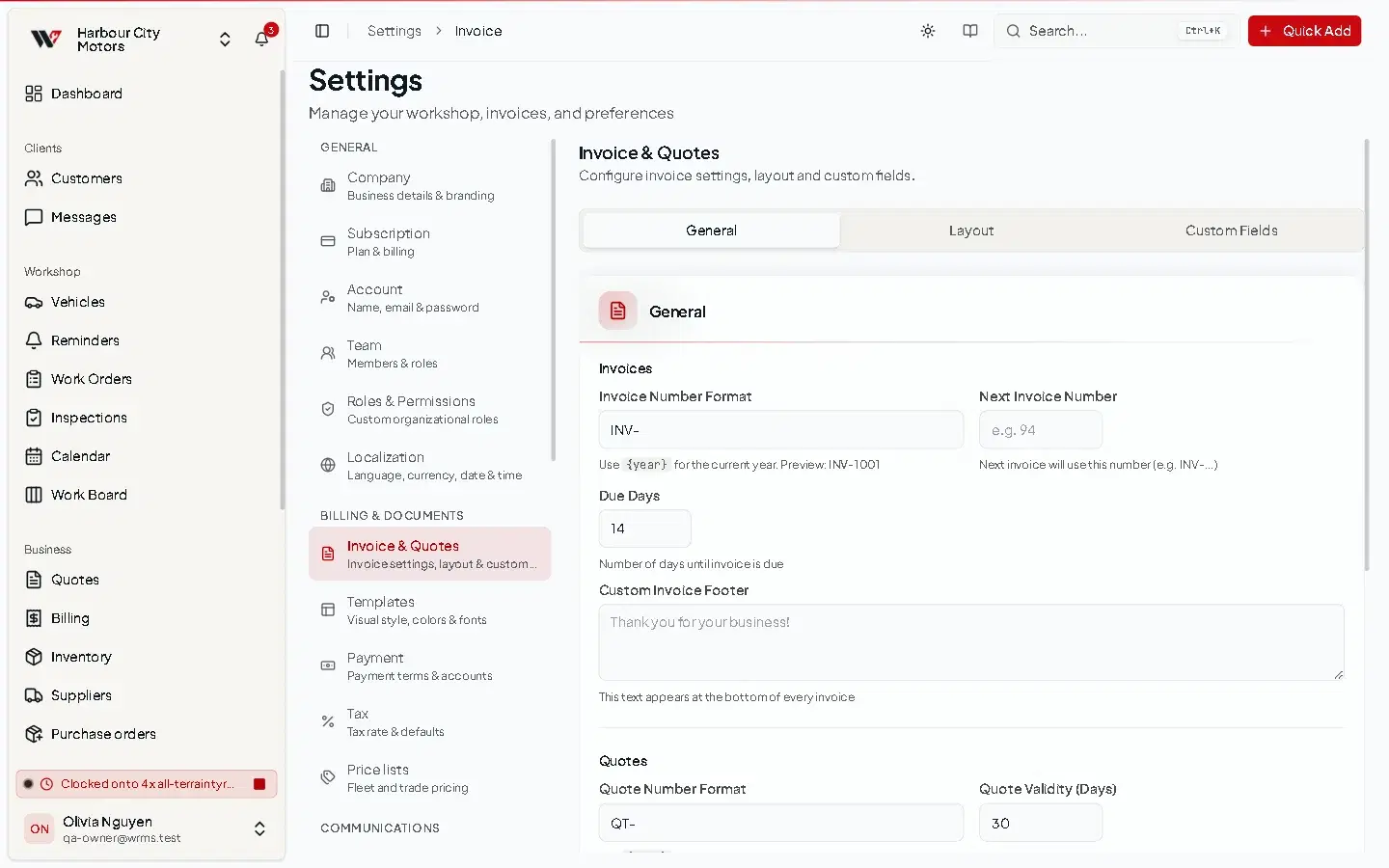
The page has three tabs: General, Layout and Custom Fields.
General
| Setting | What it does |
|---|---|
| Invoice Number Format | The pattern for invoice numbers. Use {year} for the current year; the preview shows the result. |
| Next Invoice Number | The number the next invoice will use. Set it to follow on from your old system. |
| Due Days | How many days after the invoice date payment is due. |
| Quote Number Format | The pattern for quote numbers, also supporting {year}. |
| Quote Validity (Days) | How long new quotes are valid. 0 turns off the valid-until date. |
| Visibility on Invoice | Show or hide Company Logo, Company Name, Bank Account and Organization Number in the invoice header. |
| Custom Invoice Footer | Text printed at the bottom of every invoice, such as your thanks or bank details. |
| Parts Markup | Default Markup % pre-fills a markup on manually added parts. Turn on Apply markup to inventory parts to price inventory parts at cost plus this markup too, instead of their stored sell price. Markup is never shown to customers. |
Select Save Invoice Settings.
Layout
Choose the order and visibility of sections on invoices and quotes, with a Preview. Save Layout keeps your changes; Reset to Default undoes them.
Custom Fields
Add your own fields to documents. See Custom fields.
Settings → Templates
Change how PDF invoices and quotes look: start from a Template Presets option, choose a Primary Color, a Font Family (Helvetica, Times Roman or Courier), a Header Style (Standard, Compact or Modern) and Logo Size, and check the preview. Save with Save Invoice Template or Save Quotation Template.
Custom templates must be included in your plan.
Settings → Payment
Bank account, payment terms and online payment providers. See Payments.
Settings → Tax
Tax rate, mode and label. See GST and tax.
Still need help?
Email support@wrmspro.com or use the contact form. Signed-in users can also send a request from Settings → Support.