

Invoices
Every work order carries its own invoice, kept in step with the job. Number it, send it, share it, and void it if it was raised in error.
In WRMS Pro you do not create an invoice separately. Each work order has one, and it updates as you add or change parts, labour, discount and tax. When the job is ready to bill, you send the invoice from the work order.
When to use it
- The job is finished and the customer needs to pay.
- A customer wants a copy of an old invoice.
- An invoice was raised by mistake and must be withdrawn.
Before you start
- Your invoice settings and tax settings should be in place — they control numbering and what is printed.
- To email or SMS the customer, their details must be on the customer record and email or SMS must be set up.
Send an invoice
Choose how to send it:
- Email — emails the invoice to the customer.
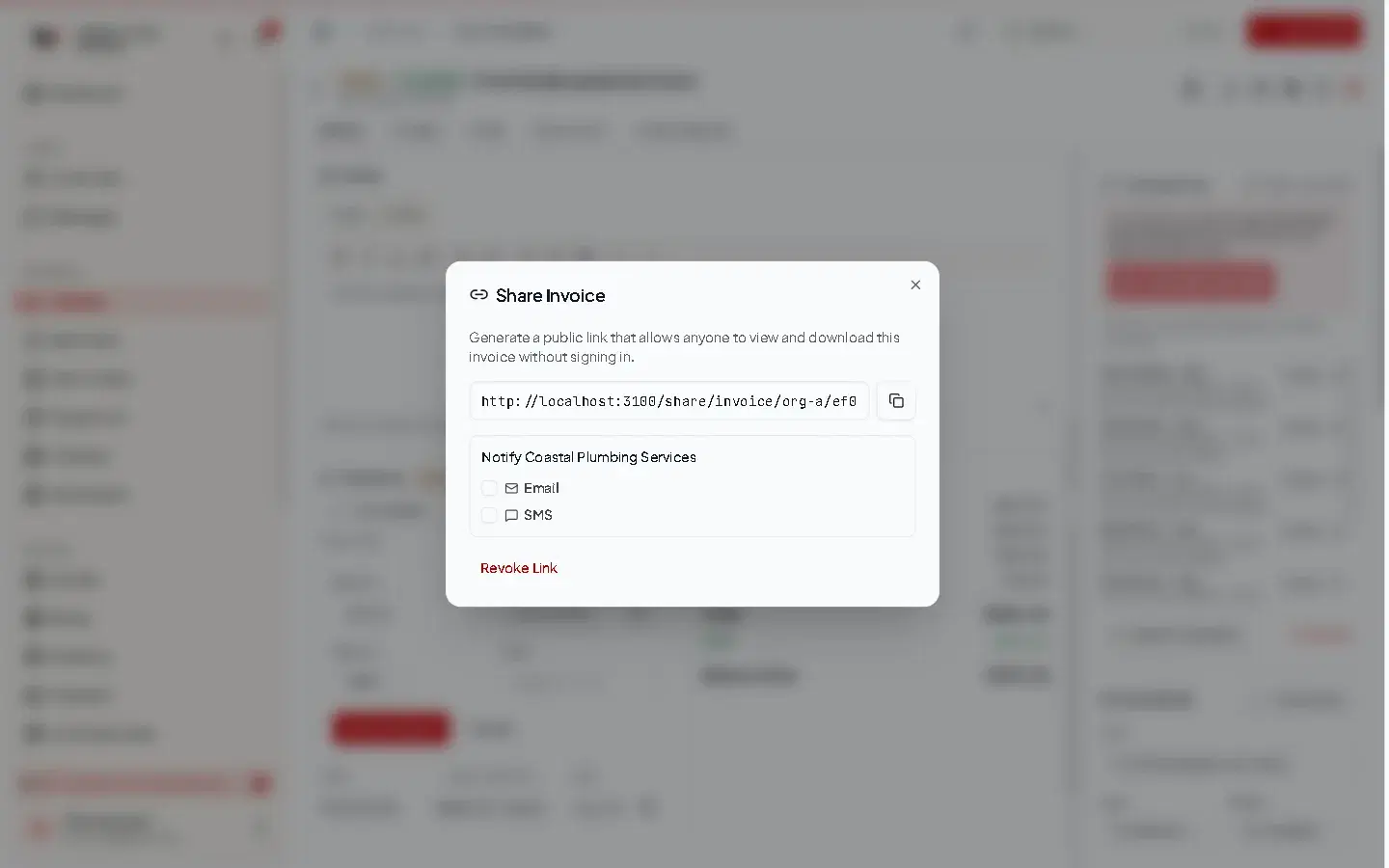
- Share — select Generate Public Link, then send it by Email or SMS from the same dialog, or Copy link to paste into a message. The customer can view, download and — if you take online payments — pay from the link.
- PDF — download it to print or attach yourself.
What is on the invoice
Your logo and company details, Bill To (the customer, with their tax ID if recorded), the vehicle with registration and VIN, parts and labour, subtotal, discount, tax, total, amount paid and Amount Due, payment information (such as bank account and terms), your footer, and, where recorded:
- photos, videos and documents from the job that are marked to include on the invoice;
- Observations your technicians noted;
- Warranty details.
What appears, and in which order, is set in Invoice settings.
Invoice numbers
Numbers follow the Invoice Number Format in Settings → Invoice. You can include {year}, and set Next Invoice Number to continue from your previous system. Numbers are unique within your workshop.
Paid, partly paid, unpaid
Whether an invoice is paid is worked out from the payments recorded against it:
| Shown as | When |
|---|---|
| Paid | Payments cover the total. The shared invoice shows PAID IN FULL. |
| Partial | Some money received, some still owed. |
| Unpaid | Nothing received yet. |
| Voided | Withdrawn — see below. Not counted as owed. |
See Payments to record money received.
There is no separate "issue invoice" step. Follow up what is owed using the payment state above; the only status you set by hand is Void.
Void an invoice
If an invoice was raised in error, void it rather than deleting the job.
- The invoice keeps its number and stays on file, marked Voided. Keeping the number avoids unexplained gaps in your invoice sequence.
- It stops counting as money owed, in Billing and in reports.
- A voided invoice cannot be paid online; the customer's link says it has been cancelled.
- Voiding does not refund money already paid. WRMS Pro warns you if payments exist. Arrange any refund separately.
- Voiding cannot be undone.
Parts-only sales
For over-the-counter sales, create a Parts-Only Sale from New Work Order. It has parts and an invoice but no vehicle, and is sent and paid the same way.
Permissions
| Action | Permission |
|---|---|
| See billing | Billing → View |
| Void | Invoices → Void |
| Record payments | Billing → Create |
| Edit invoice details on a job | Work Orders → Edit |
Frequently asked questions
Still need help?
Email support@wrmspro.com or use the contact form. Signed-in users can also send a request from Settings → Support.