

Inventory overview
How WRMS Pro tracks the parts you stock, from ordering them from a supplier to fitting them on a customer's car.
Audience:Workshop ManagerService Advisor
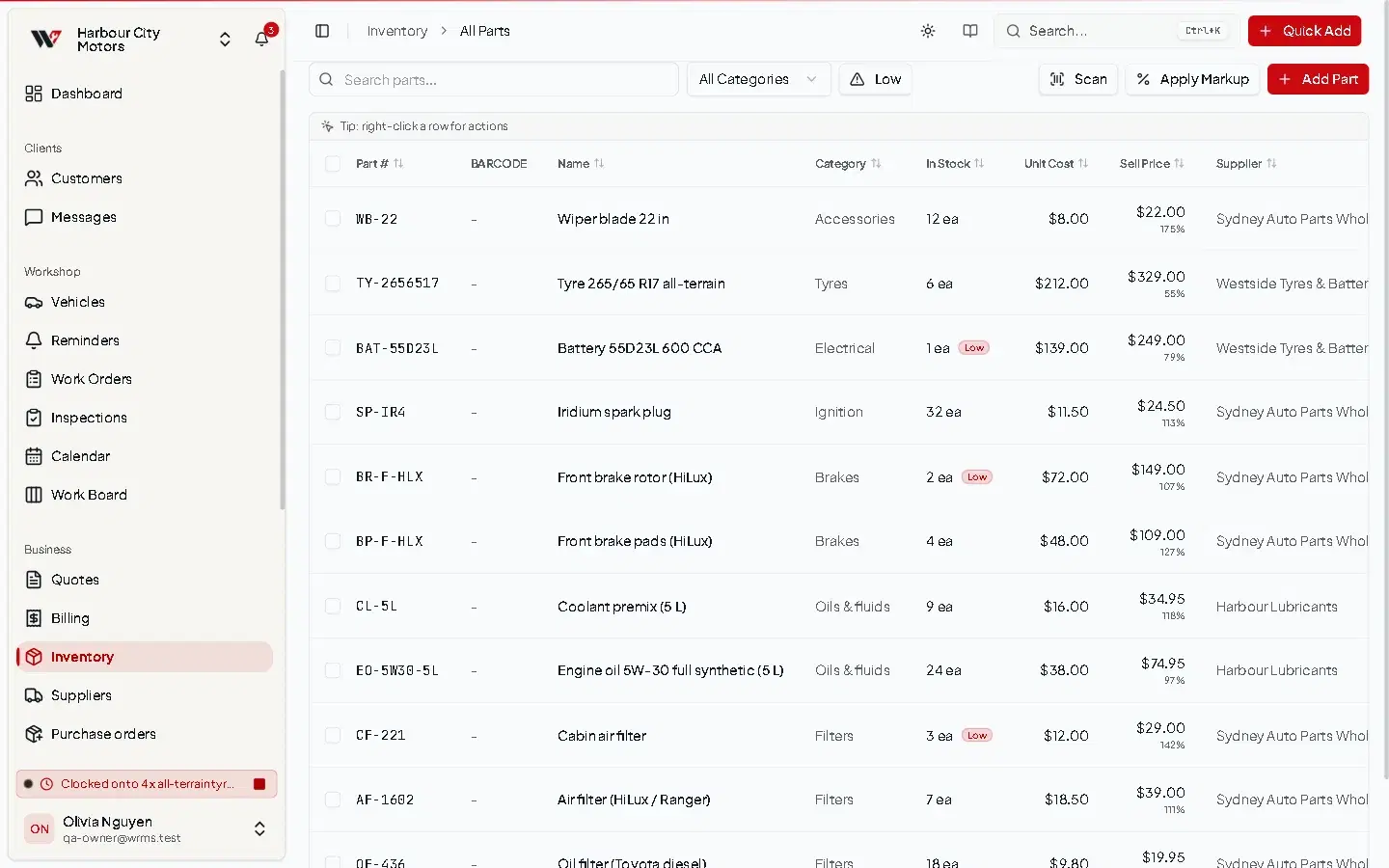
Inventory in WRMS Pro keeps a running count of every part you stock. The count goes up when you receive goods and down when a part is used on a job, and every change is recorded.
- 1Supplier
- 2Purchase order
- 3Goods receivedstock goes up
- 4In stock
- 5Used on a work orderstock goes down
In this section
Parts
Add and describe the parts you stock.
Stock management
Adjust counts, scan barcodes, set prices in bulk.
Stock movements
The history of every change to a part's quantity.
Suppliers
Who you buy from.
Purchase orders
Order stock and receive it in.
Low stock
Get told before you run out.
Parts on work orders
What happens to stock when parts go on a job.
Who can do what
Inventory has separate permissions so you can let staff see stock without letting them change it:
| Permission | Allows |
|---|---|
| Inventory → View / Create / Edit / Delete | Seeing and maintaining part records. |
| Inventory → Adjust stock | Changing quantities by hand (stocktake corrections, damage). Kept separate from editing so tidying a description does not mean you can write stock off. |
| Suppliers → View / Create / Edit / Delete | The supplier list. |
| Purchasing → Create / View / Edit / Delete purchase orders | Raising and editing orders. |
| Purchasing → Send / approve POs | Marking an order as sent. |
| Purchasing → Receive goods | Booking deliveries into stock. |
Online ordering from parts suppliers (such as Burson EzyParts) is not available in the current release. See Integrations.
Still need help?
Email support@wrmspro.com or use the contact form. Signed-in users can also send a request from Settings → Support.