

Billing workflow
A daily and weekly routine for getting finished jobs invoiced, following up what is owed, and keeping the numbers right.
Audience:AccountsService AdvisorWorkshop Owner
WRMS Pro gives you the figures; this page suggests a routine for using them. Adapt it to how your workshop works.
- 1Job completed
- 2Invoice checked and sent
- 3Payment recorded
- 4Unpaid followed upBilling and Past Due report
The Billing page
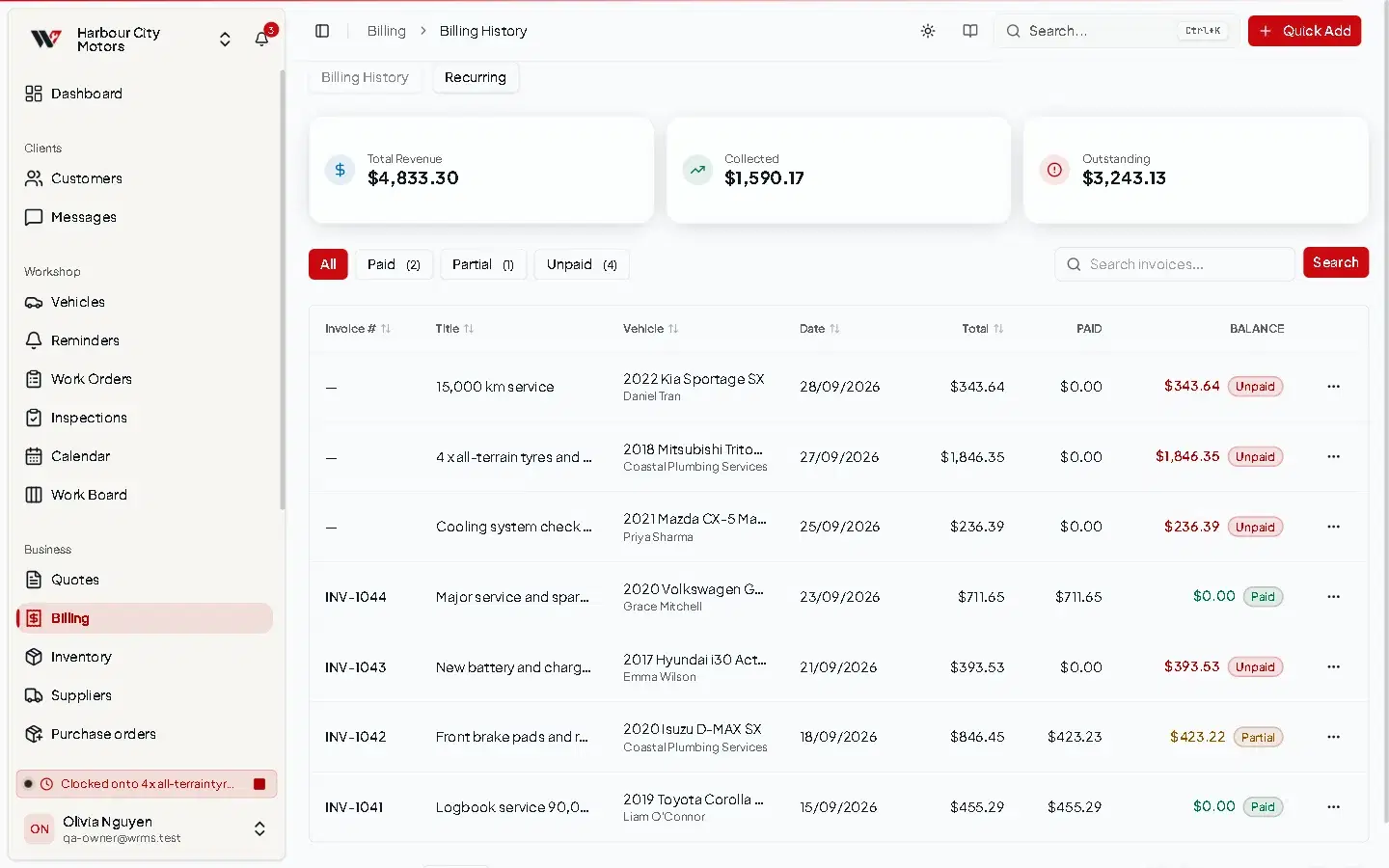
Billing lists every invoice with its number, title, vehicle, customer, date, total, amount paid and balance.
- The totals at the top show Total Revenue, Collected and Outstanding.
- Filter by Paid, Partial or Unpaid, and use Search to find an invoice.
- Voided invoices are marked Voided and are not counted as owed.
- Recurring opens recurring invoices.
Every day
- Invoice finished jobs. Filter Work Orders by Completed and check each has been sent to the customer.
- Record payments as they come in — at the counter, by transfer, or check that online payments have appeared. See Payments.
- Check the dashboard for accepted quotes that need converting into jobs.
Every week
- Open Billing, filter Unpaid and Partial, and follow up anything past due. The Past Due Invoices report groups them by age.
- Resend the invoice link by SMS or email from the work order's Share dialog.
Every month
- Run the Revenue and Tax reports for the month. See Reports.
- Reconcile Collected against your bank statement.
- Export what your accountant needs as CSV or PDF, or set up a scheduled report so it arrives automatically.
The monthly Collected figure is currently grouped by job date rather than payment date. See the note on Reports.
Permissions
The Billing page needs Billing → View. Voiding needs Invoices → Void.
Still need help?
Email support@wrmspro.com or use the contact form. Signed-in users can also send a request from Settings → Support.