

GST and tax
Set your tax rate and label, choose whether prices include GST, and handle tax-exempt customers.
WRMS Pro calculates tax on every quote, work order and invoice from a rate and a mode you choose. For an Australian workshop registered for GST, that means a 10% rate labelled GST.
Before you start
- Decide whether you enter prices including or excluding GST. Most workshops that quote retail customers "drive-away" prices work inclusive; many trade workshops work exclusive.
- Settings → Edit permission.
Set up GST
Turn tax on and set the rate
Open Settings → Tax, turn on Enable Tax and enter the Default Tax Rate (%) — 10 for GST. New work orders and quotes use this rate.
Choose the tax mode
On the same page, choose the Tax mode:
- Exclusive — the prices you type are before GST. GST is added on top. $100 + 10% = $110.
- Inclusive — the prices you type already include GST. WRMS Pro works out the GST inside the price and the total stays as typed. $110 includes $10 GST.
Set the tax label
Enter GST as the Tax label. This is the word printed on quotes and invoices. Left blank, a generic default is used.
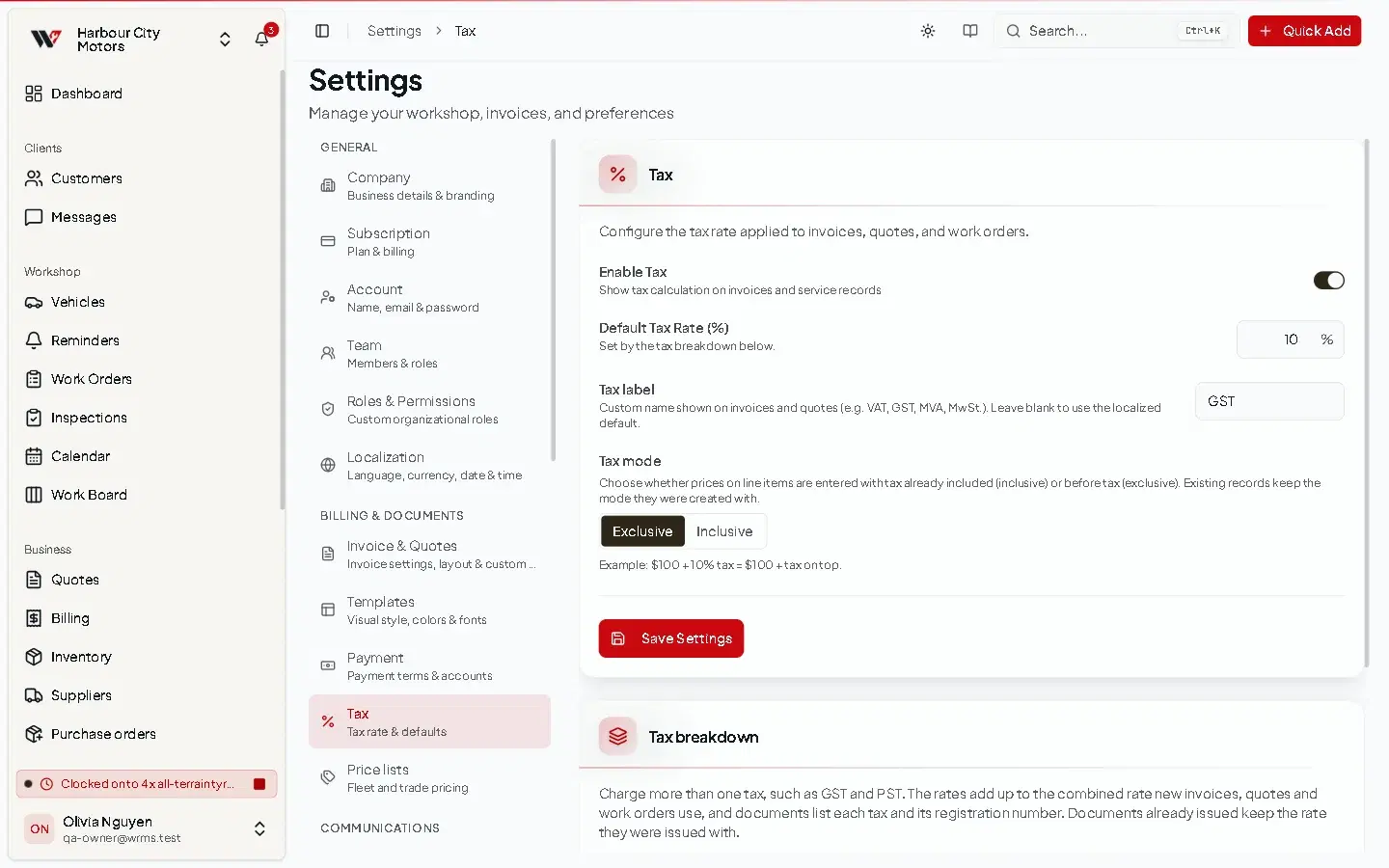
Tax breakdown
The Tax breakdown card lets you name the tax and print your registration number with it. For an Australian workshop, add one line:
| Name | Rate | Registration number |
|---|---|---|
| GST | 10 | your ABN, for example 51 824 753 556 |
Quotes and invoices then show the tax line as GST (ABN 51 824 753 556). You can type the number with or without the word ABN. With no lines, WRMS Pro uses the single Default Tax Rate and Tax label.
The card can hold up to five taxes whose rates add up to the combined rate, for businesses that charge more than one tax. Australian workshops only need GST.
How totals are calculated
| Exclusive mode | Inclusive mode | |
|---|---|---|
| Line prices you enter | before GST | including GST |
| Discount | taken off before GST | taken off the GST-inclusive amount |
| GST | added on top: (subtotal − discount) × 10% | worked out of the price: amount ÷ 11 |
| Total | subtotal − discount + GST | subtotal − discount |
| Invoice shows the tax as | an amount added to the subtotal | an amount included in the total |
Money is calculated in exact cents, so totals do not drift from rounding.
Changing mode or rate later
A new rate or mode applies to new quotes and work orders. Existing records keep the rate and mode they were created with, so invoices you have already sent do not change.
If you turn tax on after you have started, Apply tax to existing records in Settings → Tax sets the default rate on existing work orders and quotes that have no tax rate. WRMS Pro tells you how many records will change before you confirm.
Before you continue
Applying tax to existing records changes many records at once, including their totals. Export a backup first.
Tax-exempt customers
Turn on Tax exempt on a customer record for customers you do not charge GST. You can also record the customer's own Tax ID, which prints in the Bill To section when your invoice layout includes it.
Your ABN
Show your ABN on invoices in either or both of these ways:
- As the registration number of your GST line in the Tax breakdown (see above). It prints as GST (ABN …) next to the GST amount.
- As the Organization Number in Settings → Company, entered as ABN 51 824 753 556, with Organization Number turned on under Settings → Invoice → Visibility on Invoice. It prints in your business details.
Reporting GST
The Tax report shows tax collected, taxable revenue and a monthly breakdown for any date range. See Reports.
Tax invoices
When an invoice charges GST, it is titled TAX INVOICE, as the ATO requires for a GST-registered business. An invoice with no tax on it, for example for a tax-exempt customer, is titled INVOICE. This applies to the PDF, the emailed invoice and the invoice link you share.
A tax invoice from WRMS Pro shows:
- the words Tax invoice;
- your business name and your ABN (from the Tax breakdown or your Organization Number);
- the invoice date and number;
- what was supplied, with quantities and prices;
- the GST amount, or that the total includes GST.
Invoices of $1,000 or more and BAS
For a tax invoice of $1,000 or more, the ATO also asks for the buyer's identity or ABN. Record it in the customer's Tax ID field so it prints under Bill To. WRMS Pro records and reports your GST but does not prepare your BAS; check your set-up with your accountant.
Frequently asked questions
Still need help?
Email support@wrmspro.com or use the contact form. Signed-in users can also send a request from Settings → Support.
Payments
Record cash, card and bank transfer payments against an invoice, take part payments, and let customers pay online from their invoice link.
Invoice settings
Control invoice and quote numbering, due dates, quote validity, what prints on your documents, their layout and look, and your parts markup.