

Payments
Record cash, card and bank transfer payments against an invoice, take part payments, and let customers pay online from their invoice link.
A payment is money received against a work order's invoice. Record every payment as it happens and WRMS Pro keeps the balance, the billing list and your reports correct.
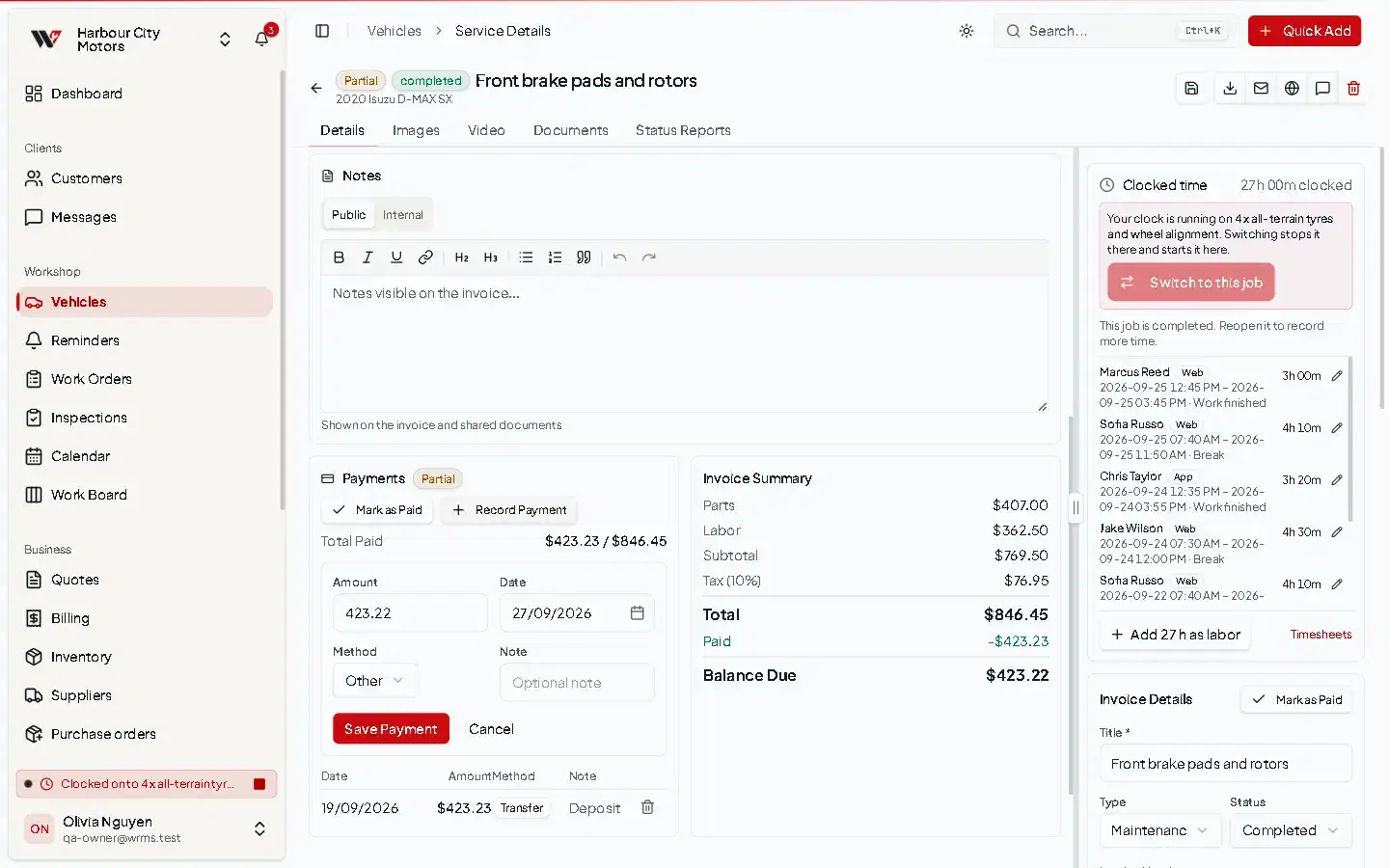
Record a payment
Total Paid and Balance Due update straight away. Record a deposit or part payment the same way; the invoice shows as Partial until the rest is paid.
Mark as paid
Mark as Paid marks the whole invoice as settled without entering individual payments — useful for account customers you reconcile elsewhere. Mark as Unpaid reverses it. Recording actual payments is better where you can, because reports can then show when money came in and how.
Delete a payment
Delete a payment recorded by mistake from the Payments list. The balance goes back up.
Let customers pay online
If your plan includes payments and you connect a payment provider, the customer's invoice link shows a payment button. They can pay the Full amount or a Partial payment. When the provider confirms, the payment is recorded against the invoice automatically, and the customer sees Payment received!
| Provider | Customer pays with | Notes |
|---|---|---|
| Stripe | Credit or debit card | Needs a Stripe account. |
| PayPal | PayPal | Needs a PayPal business account. |
| Vipps | Vipps | Norway only. Not relevant to Australian workshops. |
Connect a provider
checkout.session.completed; for PayPal, PAYMENT.CAPTURE.COMPLETED). This is how WRMS Pro hears that a payment went through.Provider fees, payout timing and refunds are handled in your Stripe or PayPal account, not in WRMS Pro.
Bank details and payment terms
In Settings → Payment → Payment Details, enter your Bank Account and Payment Terms text (for example Net 14 days). Payment terms print on invoices; the bank account prints when Bank Account is turned on under Settings → Invoice → Visibility on Invoice.
Refunds
WRMS Pro records money received; it does not send refunds. Refund through your EFTPOS terminal, bank or payment provider, then delete or adjust the payment in WRMS Pro so the balance is right. If the invoice itself was wrong, void it.
Permissions
| Action | Permission |
|---|---|
| Record a payment | Billing → Create |
| Delete a payment | Billing → Delete |
| Connect payment providers, bank details | Settings → Edit |
Troubleshooting
See Payment problems.
Still need help?
Email support@wrmspro.com or use the contact form. Signed-in users can also send a request from Settings → Support.