

Work order → invoice → payment
Finish Sam's job, check the invoice, send it, and record his payment — in person or online.
The Corolla is done. Here is how to close the job out properly so the invoice, the payment and your reports all agree.
You need: Work Orders → Edit and Billing → Create.
- 1Job Completed
- 2Invoice checked
- 3Invoice sent
- 4Payment recorded
- 5Balance zero
Close off the work
The technician selects Clock off with Work finished. On the Work Orders list, select Complete (or set Status to Completed on the job).
When WRMS Pro offers to Notify Sam, tick SMS and Send — "Your Corolla is ready for pickup."
Check the invoice
Open the work order and look at the Invoice Summary:
- every part used is there, with the right quantity;
- labour hours match the job — compare with Time on this job;
- discount and GST are right;
- Invoice Number, Invoice Date and Due Date are filled in.
Add anything the customer should read to the invoice notes, and make sure photos you want Sam to see are included.
Send it
Select Share, Generate Public Link, tick SMS and/or Email, and Send Notification. Sam can view it, download a PDF and — if you have online payments set up — pay by card.
Take payment
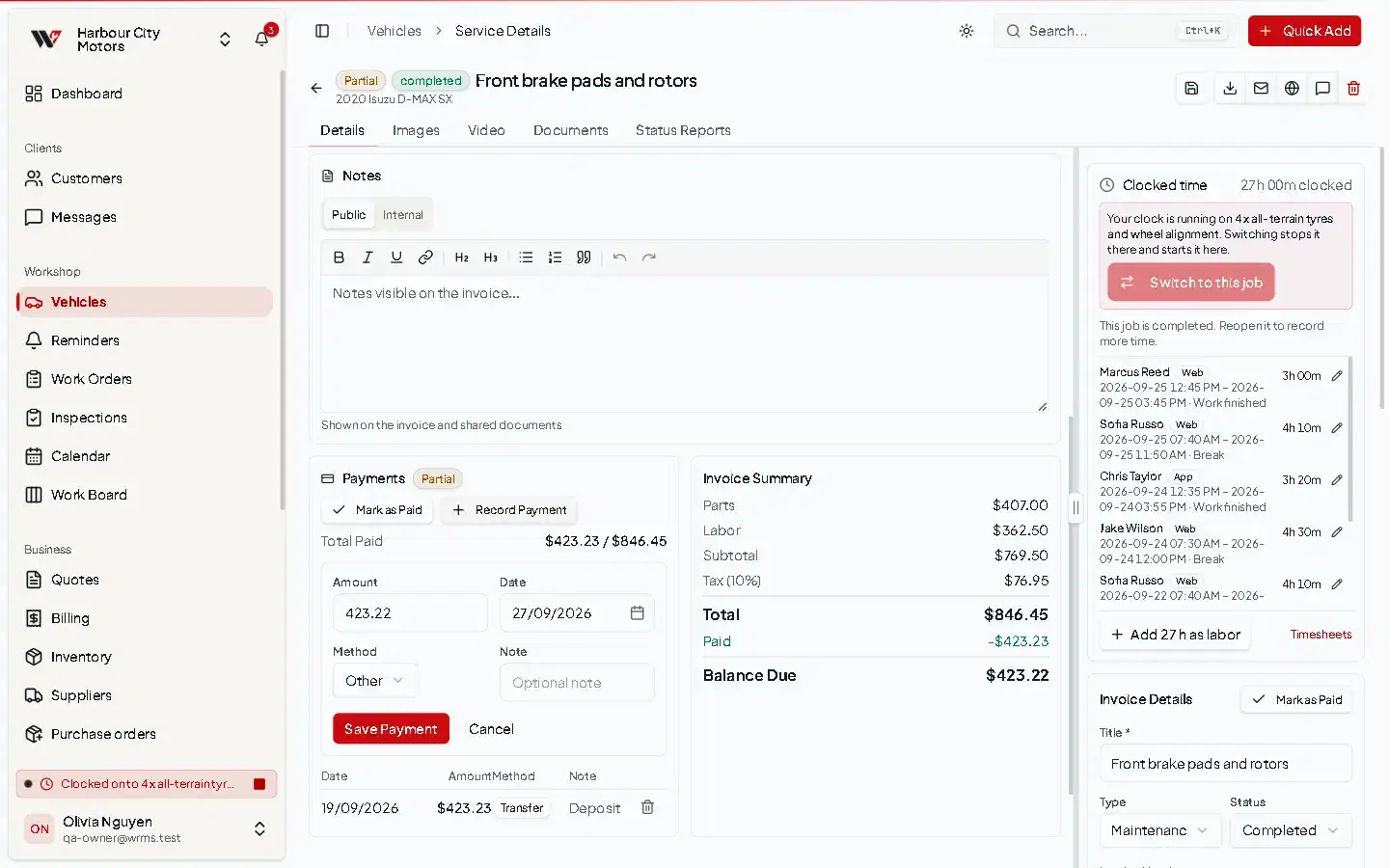
Under Payments, select Record Payment, enter the amount, choose Card, Cash or Transfer, and Save Payment.
Confirm it is settled
Balance Due shows zero and the invoice shows as Paid in Billing. The shared invoice now reads PAID IN FULL.
If something needs fixing afterwards
- Wrong amount on the job — edit the work order; the invoice and link update. Check the balance.
- Invoice should never have been raised — void it in Billing.
- Payment recorded twice — delete the extra payment under Payments.
Next
Set up Sam's next visit: Service reminder workflow.
Still need help?
Email support@wrmspro.com or use the contact form. Signed-in users can also send a request from Settings → Support.