

Quotes
Price a job before starting it, send it to the customer to accept, and turn it into a work order when they say yes.
A quote tells the customer what the work will cost before you start. It uses the same parts and labour lines as a work order, so converting an accepted quote gives you a ready-made job.
When to use it
- Repairs over a certain value, or anything the customer has not already agreed to.
- Following up an inspection that found defects.
- Insurance or fleet work that needs sign-off.
Before you start
- Quotes → Create permission.
- A customer, and ideally the vehicle.
Create a quote
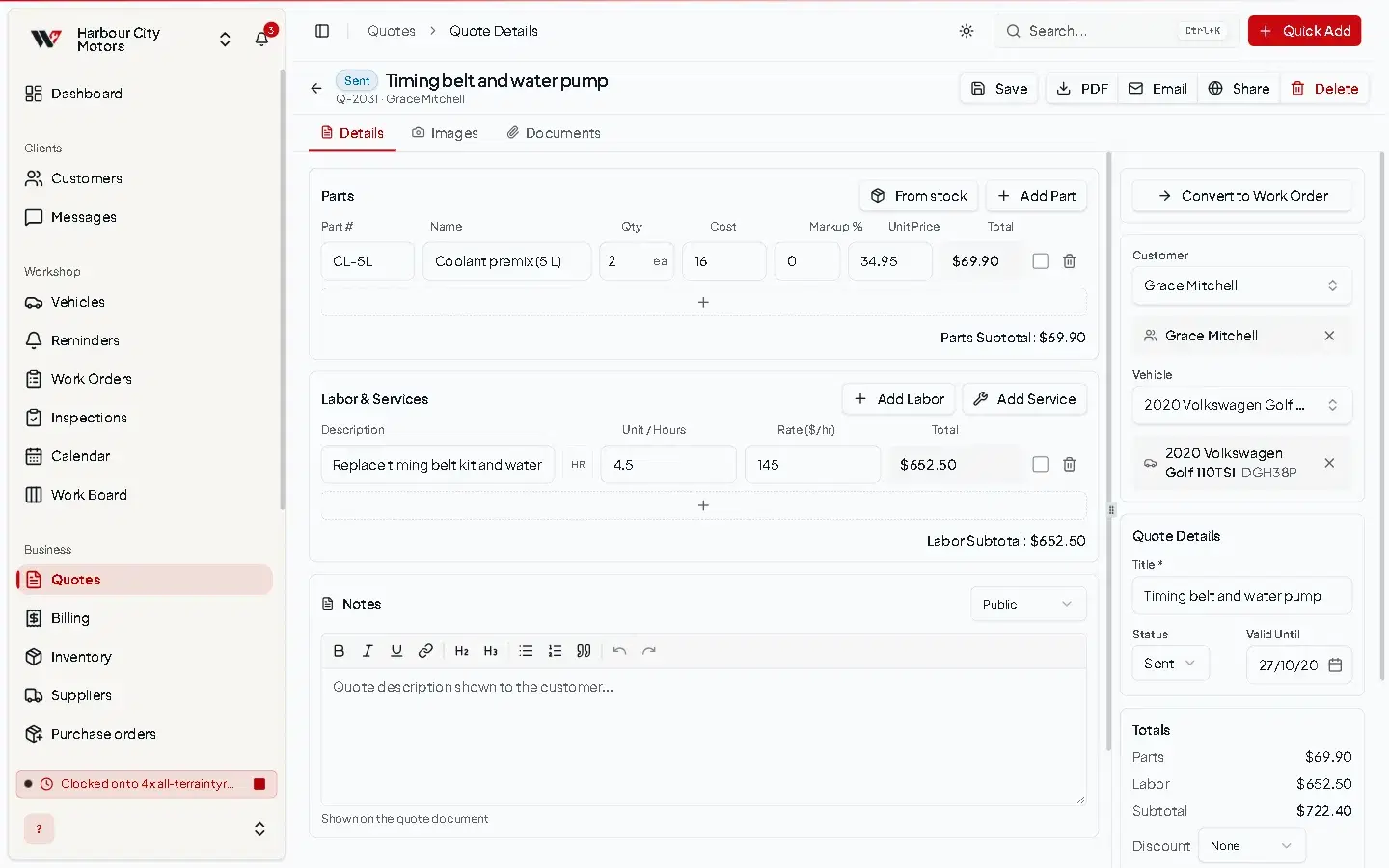
Optional lines
You can mark a line as excluded to keep it on the quote without counting it in the total — useful for "while we're in there" recommendations.
Your costs stay private
Each part line has a unit cost and markup for your own pricing. Customers only ever see the sell price.
Send the quote
| Option | What it does |
|---|---|
| Share | Creates a public link. From the share dialog you can send it to the customer by Email or SMS. The customer can accept or request changes from the link. |
| Emails the quote to the customer with the PDF attached, and marks it Sent. | |
| Downloads the quote as a PDF. |
The quote's Shared Link panel shows when it was shared, whether it has been viewed, and how many times. Emailing the quote marks it Sent; if you only share a link, set the status to Sent yourself so your list stays accurate.
Quote statuses
| Status | Meaning |
|---|---|
| Draft | Being prepared. |
| Sent | With the customer. |
| Accepted | The customer accepted it. |
| Changes Requested | The customer asked for changes, with a message. |
| Rejected | You have marked it as not going ahead. |
| Converted | It has been turned into a work order. |
| Expired | Shown when the valid-until date has passed. An expired quote cannot be accepted. |
See Quote approval for how the customer responds and what you do next.
Convert to a work order
When the customer accepts, select Convert to Work Order, choose the vehicle and select Convert. A new Pending work order is created with the quote's lines, and the quote is marked Converted. See Quote to work order.
Permissions
| Action | Permission |
|---|---|
| View | Quotes → View |
| Create | Quotes → Create |
| Edit, change status | Quotes → Edit |
| Delete | Quotes → Delete |
Frequently asked questions
Still need help?
Email support@wrmspro.com or use the contact form. Signed-in users can also send a request from Settings → Support.