

Reports
See revenue, unpaid invoices, tax, jobs, technicians, parts, stock and customer retention for any date range, and have reports emailed on a schedule.
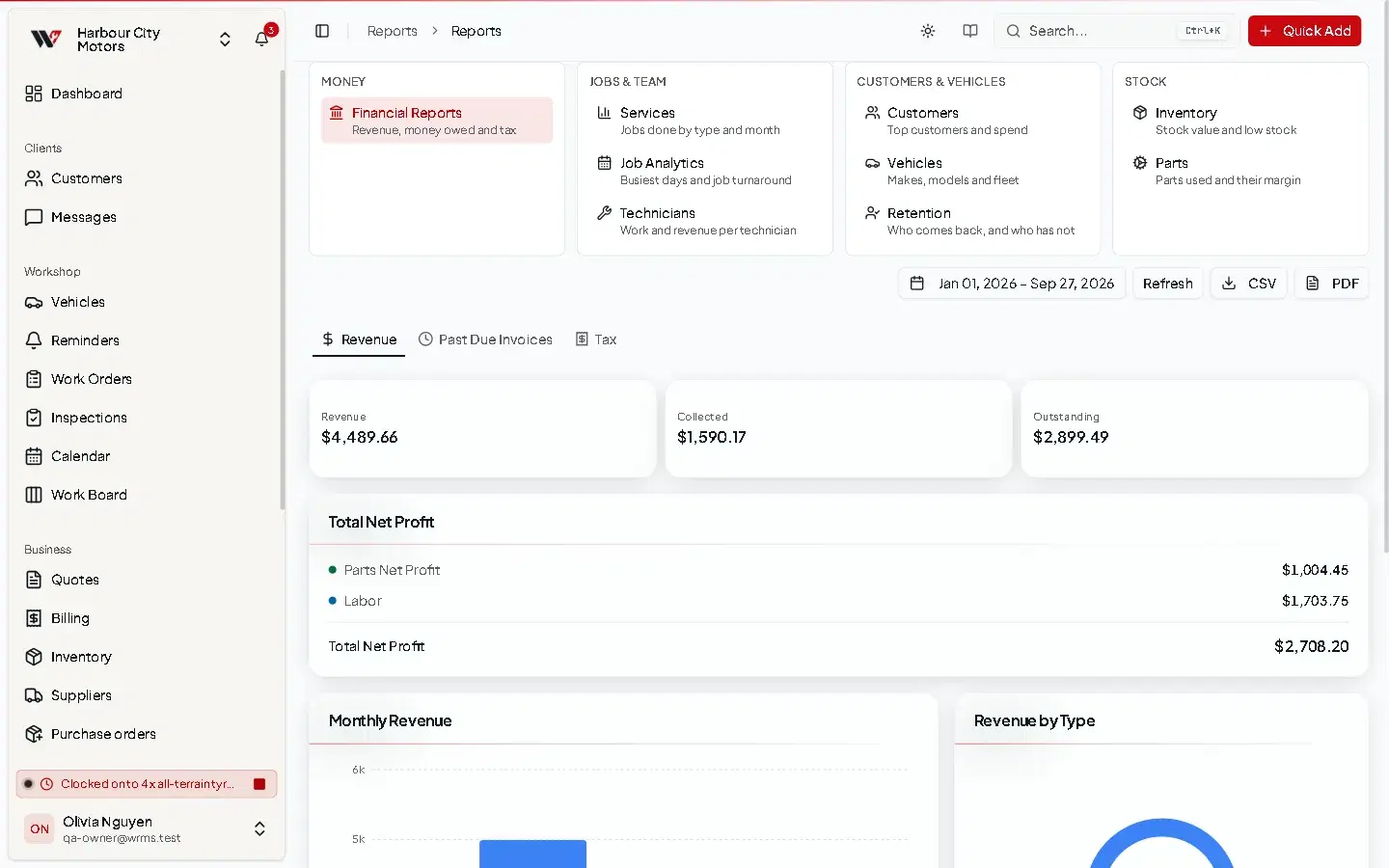
Reports turn your jobs, invoices and stock into numbers you can act on. Pick a date range, pick a report, and export it if you need it elsewhere.
Before you start
- Reports → View permission, and a plan that includes reports.
- Reports read what is recorded. Keep work order dates, statuses, technicians and payments up to date and the figures will be right.
Available reports
| Report | What it shows |
|---|---|
| Financial Reports | The financial reports grouped together: revenue, past due invoices and tax. |
| Revenue | Revenue, Collected, Outstanding, number of completed jobs, parts cost, parts net profit, labour revenue and total net profit, with a monthly breakdown and revenue by job type. |
| Past Due Invoices | Invoices with an unpaid balance past their due date, filterable by age, and the total amount due. |
| Tax | Total Tax Collected, taxable revenue, invoices with tax, tax by rate and a monthly breakdown. |
| Services | Number of jobs by status and by type. |
| Customers | Total and active customers, and top customers by spend. |
| Inventory | Parts and items held, stock value at cost and at sell price, potential margin and low stock. |
| Technicians | Jobs, revenue, average revenue and hours per technician. |
| Parts | Parts used, parts revenue, cost and net profit, and top parts by usage. |
| Job Analytics | Total jobs, average job value, jobs by day of week, service types and monthly trend. |
| Retention | New and returning customers, average days between visits and top returning customers. |
| Vehicles | Pick one vehicle to see its total cost, jobs by type, parts used, labour hours and monthly costs. |
Choose the date range at the top. Use CSV or PDF to export, and Refresh to recalculate.
How the figures are worked out
- Outstanding is worked out invoice by invoice and never goes below zero, so an overpayment on one job does not hide money owed on another.
- Voided invoices are not counted as owed.
- Parts and labour revenue is reported before tax, whether you enter prices including or excluding GST.
The monthly Collected figure is grouped by the job's date, not the date the payment was received, and months follow UTC time, so work finished late in the evening in Australia can fall on the next day. Keep this in mind when you reconcile against your bank or accounting software.
Scheduled reports
Have reports emailed to you or your accountant automatically.
Scheduling needs Reports → Schedule reports; editing and deleting schedules need Edit report schedules and Delete report schedules. Emails are sent using your email settings.
Permissions
| Action | Permission |
|---|---|
| View reports | Reports → View |
| Create / edit / delete schedules | Reports → Schedule reports, Edit report schedules, Delete report schedules |
Still need help?
Email support@wrmspro.com or use the contact form. Signed-in users can also send a request from Settings → Support.