

Customers
Keep one record per person or business you do work for, with their vehicles, messages and billing terms in one place.
A customer record holds who someone is and how to reach them. Their vehicles, jobs, quotes, invoices and messages all link back to it.
When to use it
- A new customer rings or walks in.
- You need a phone number or email before calling about a job.
- A fleet or trade customer gets special pricing.
- You want to see everything you have done for someone.
Before you start
You need permission to create customers (Customers → Create). Only a name is required; add a phone number and email if you want to message them or send documents.
Add a customer
Tip
You can also create a customer while adding a vehicle or starting a work order, so the counter does not have to stop and switch screens.
Fields and options
| Field | What it is for |
|---|---|
| Name | Required. The person or business name shown everywhere. |
| No. (customer number) | Assigned in sequence. Editable, and must be unique within your workshop. |
| Email / Phone | Used for sending quotes, invoices, status reports and messages. Store mobile numbers with the country code (for example +61…) so SMS and WhatsApp work. |
| Company | For business customers. |
| Address | Printed on quotes and invoices. |
| Tax ID | The customer's own tax number, printed on documents when your layout includes it. |
| Tax exempt | Marks the customer as not charged tax. |
| Price list | Special pricing terms, such as a fleet discount. See Price lists. |
| Notes | Anything the team should know. |
The customer page
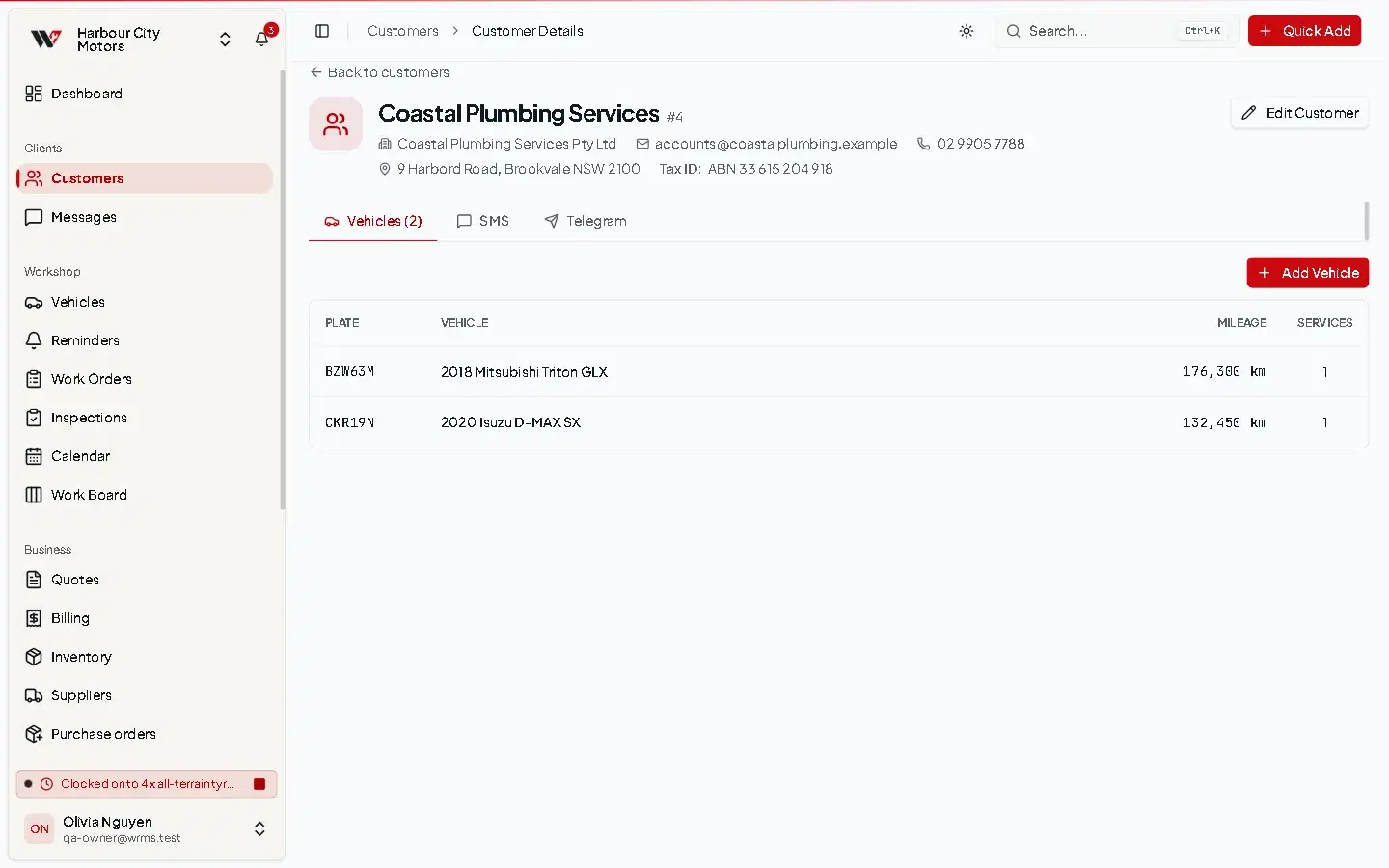
Open a customer to see:
- Vehicles — every vehicle linked to them, with registration, odometer and number of services;
- Messages — the conversation across SMS, WhatsApp and Telegram, plus separate SMS, Telegram and WhatsApp tabs;
- Requests — service requests from the customer. Requests are made through the customer portal, which is not part of the current release, so this tab is normally empty. See Customer portal.
Find a customer
Use the search box on Customers, or global search (Ctrl + K) from anywhere in WRMS Pro.
Delete a customer
Select the menu on the customer's row and choose Delete, or select several and use Delete in the selection bar.
Before you continue
Deleting a customer unlinks their vehicles rather than deleting them. The vehicles and their history stay in WRMS Pro without an owner. If the customer has simply moved on, consider leaving the record in place so their history stays connected.
Permissions
| Action | Permission |
|---|---|
| See customers | Customers → View |
| Add | Customers → Create |
| Edit | Customers → Edit |
| Delete | Customers → Delete |
The Messages area of the sidebar also depends on Customers → View.
Frequently asked questions
Still need help?
Email support@wrmspro.com or use the contact form. Signed-in users can also send a request from Settings → Support.