

Work orders
A work order is one job on one vehicle — what is being done, who is doing it, the parts and labour, its status, and the invoice that goes with it.
The work order is the centre of WRMS Pro. It is where the technician records what was done, where the service advisor tracks progress, and where the invoice comes from. In a few older screens it is called a service record; it is the same thing.
When to use it
Create a work order whenever a vehicle is booked in or arrives for work — a service, a repair, a diagnosis, a fitment. Create a parts-only sale when you sell parts over the counter with no vehicle.
Before you start
- Work Orders → Create permission.
- The vehicle, or enough detail to add it on the spot (make, model, year).
- Optional but useful: your labour presets and stocked parts.
Create a work order
Parts-only sale
For over-the-counter sales with no vehicle, choose Parts-Only Sale in the vehicle picker and select Create Sale. You get a work order with parts and an invoice, and no vehicle.
What is on a work order
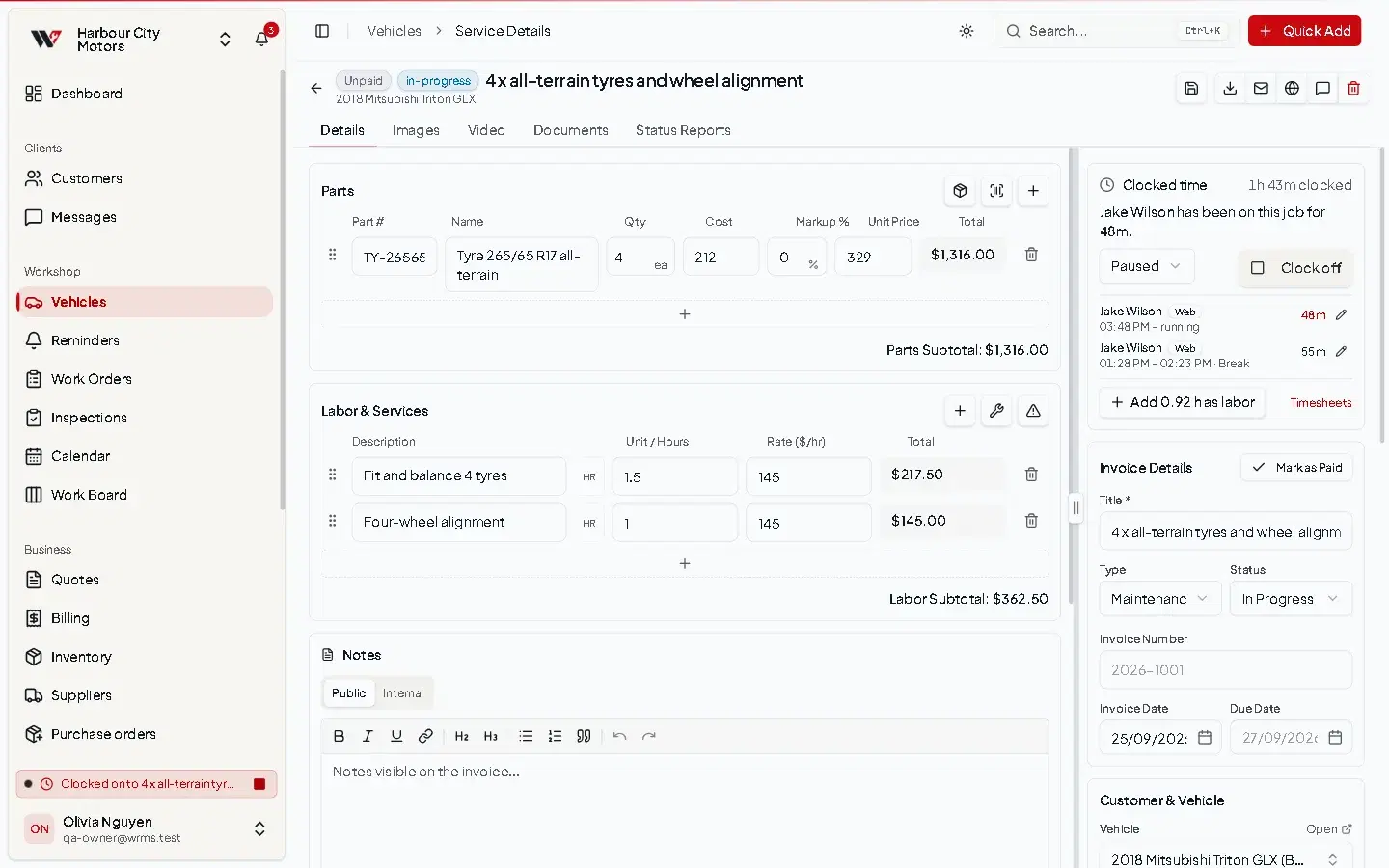
Basic information
| Field | What to enter |
|---|---|
| Title | Required. A short description of the job. |
| Date | The job date. |
| Type | Maintenance, Repair, Upgrade or Inspection. Used in reports. |
| Mileage | Odometer reading when the car came in. Keeps predicted maintenance accurate. |
| Status | Where the job is up to. See Statuses and workflow. |
| Technician | Who is doing the job. Pick a board technician or a team member. |
| Customer & Vehicle | Who and what the job is for. |
Parts and labour
- Parts — pick from inventory, or type a free-text part. Parts picked from inventory reduce stock straight away; see Parts on work orders.
- Labour — add lines priced by the hour (hours × rate) or as a fixed service price. Your default labour rate comes from Settings → Workshop, or from the customer's price list.
- Labour presets — add a saved bundle of labour and parts in one go.
Totals, discount and tax
The Invoice Summary shows parts, labour, subtotal, any discount (percentage or fixed amount), tax and total, then what has been Paid and the Balance Due. See GST and tax.
Invoice details
Invoice Number, Invoice Date and Due Date. Numbers follow the format in Settings → Invoice. See Invoices.
Notes
Diagnostic notes for the workshop, and invoice notes that print for the customer.
Warranty
Record the warranty on the work: Duration (months), Mileage Limit and Warranty Terms. Quick buttons set 3, 6, 12 or 24 months. WRMS Pro works out the expiry date and shows the warranty as Active, Expiring or Expired. Default terms can be set for new jobs.
Schedule
Set the date, Start Time and End Time, the technician and the Work bay, then Assign to Board to put the job on the Work Board. A job that runs past the end of the working day continues on the next day automatically.
Photos, video and documents
Use the Images, Video and Documents tabs to attach photos of worn parts, a short video of a noise, or a diagnostic printout. Attachments marked to appear on the invoice are shown to the customer on the shared invoice.
Status reports
The Status Reports tab sends the customer a short update with a video and message. See Job status updates.
Time clock
Technicians can start and stop a clock on the job to record how long it really took. See Technicians and work bays.
Actions at the top of the page
| Action | What it does |
|---|---|
| Save | Saves your changes. Unsaved changes shows until you do. |
| Downloads the invoice as a PDF. | |
| Emails the invoice to the customer. | |
| Share | Creates a public link to the invoice. See Share links. |
| Notify | Sends the customer an update by SMS or email. |
| Delete | Deletes the work order and its invoice, and returns linked stock. |
Statuses and workflow
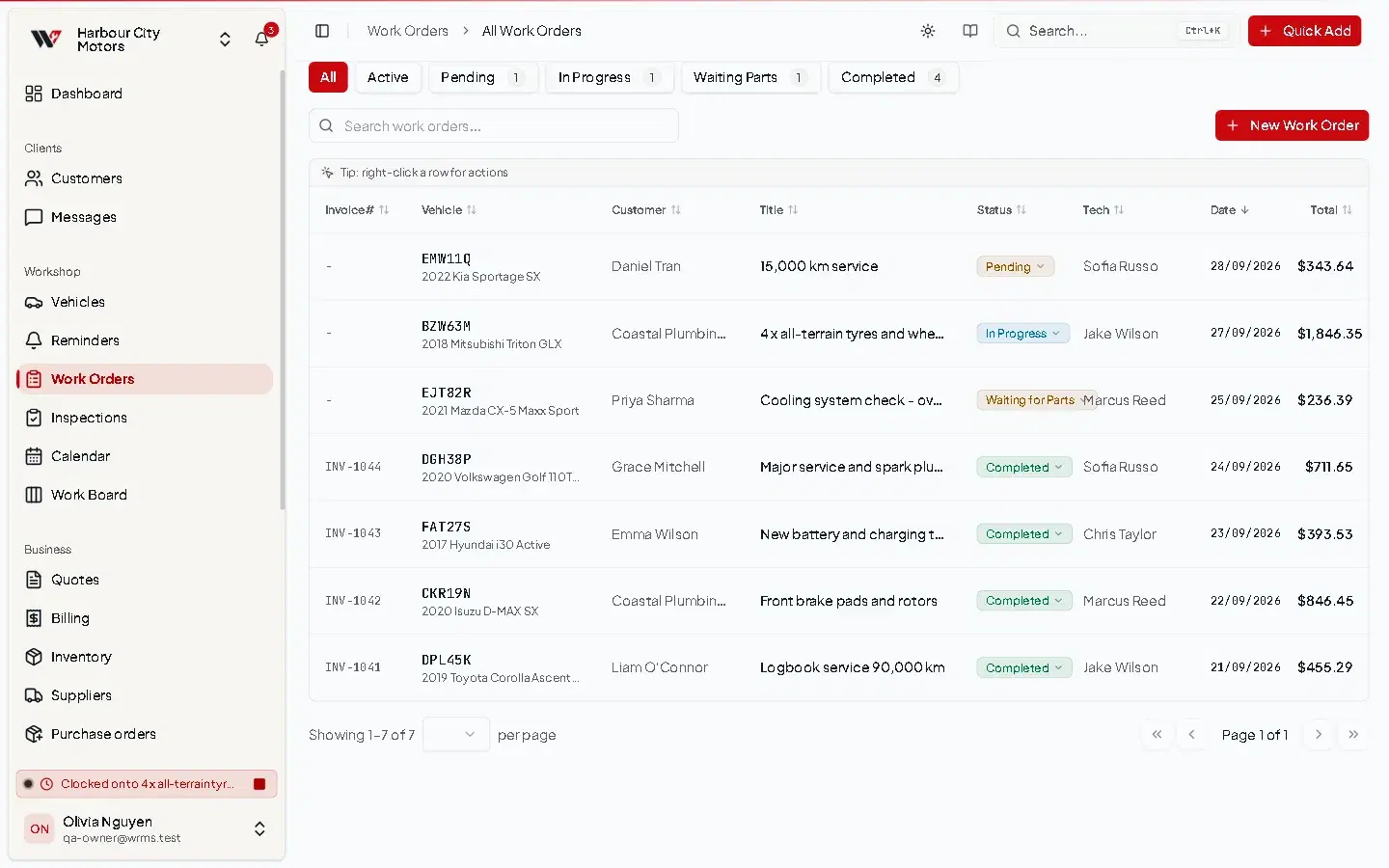
| Status | Meaning |
|---|---|
| Pending | Booked in, not started. |
| In Progress | Someone is working on it. The only status in which labour time should be accruing. |
| Paused | The technician has stepped away; the job is still theirs. |
| Waiting for Parts | Stopped until parts arrive. |
| Waiting for Approval | Stopped until the customer approves extra work. |
| Completed | Work finished. |
| Cancelled | Abandoned. Not the same as completed, and can be reopened. |
- 1Pending→ In Progress or Cancelled
- 2In Progress→ Paused, Waiting, Completed, Cancelled
- 3Paused / Waiting→ In Progress, Completed, Cancelled
- 4Completed→ reopen to Pending or In Progress
Rules WRMS Pro enforces:
- A Pending job cannot jump straight to Completed. Start it first. This stops an invoice being raised for work nobody began.
- A Completed job can be reopened — useful when a car comes back with the same fault. Reopening keeps the history instead of creating a duplicate job.
- A Cancelled job can be put back to Pending.
On the Work Orders list, the quick buttons offer only the moves that are allowed: Start Work, Waiting Parts, Complete, Resume Work and Reopen. When you change a status, WRMS Pro offers to Notify the customer by SMS or email; choose Skip if you do not want to.
Filter the list with the tabs All, Active, Pending, In Progress, Waiting Parts and Completed.
Permissions
| Action | Permission |
|---|---|
| See work orders and the calendar | Work Orders → View |
| Create | Work Orders → Create |
| Edit, change status | Work Orders → Edit |
| Delete | Work Orders → Delete |
Parts of the work order screen (including the time clock) check the Services permission rather than Work Orders. Give a role matching Work Orders and Services permissions so both behave the same way.
Troubleshooting
- I can't mark the job complete — it is still Pending. Select Start Work first.
- More in Work order problems.
Frequently asked questions
Related tutorials
Still need help?
Email support@wrmspro.com or use the contact form. Signed-in users can also send a request from Settings → Support.