

Dashboard
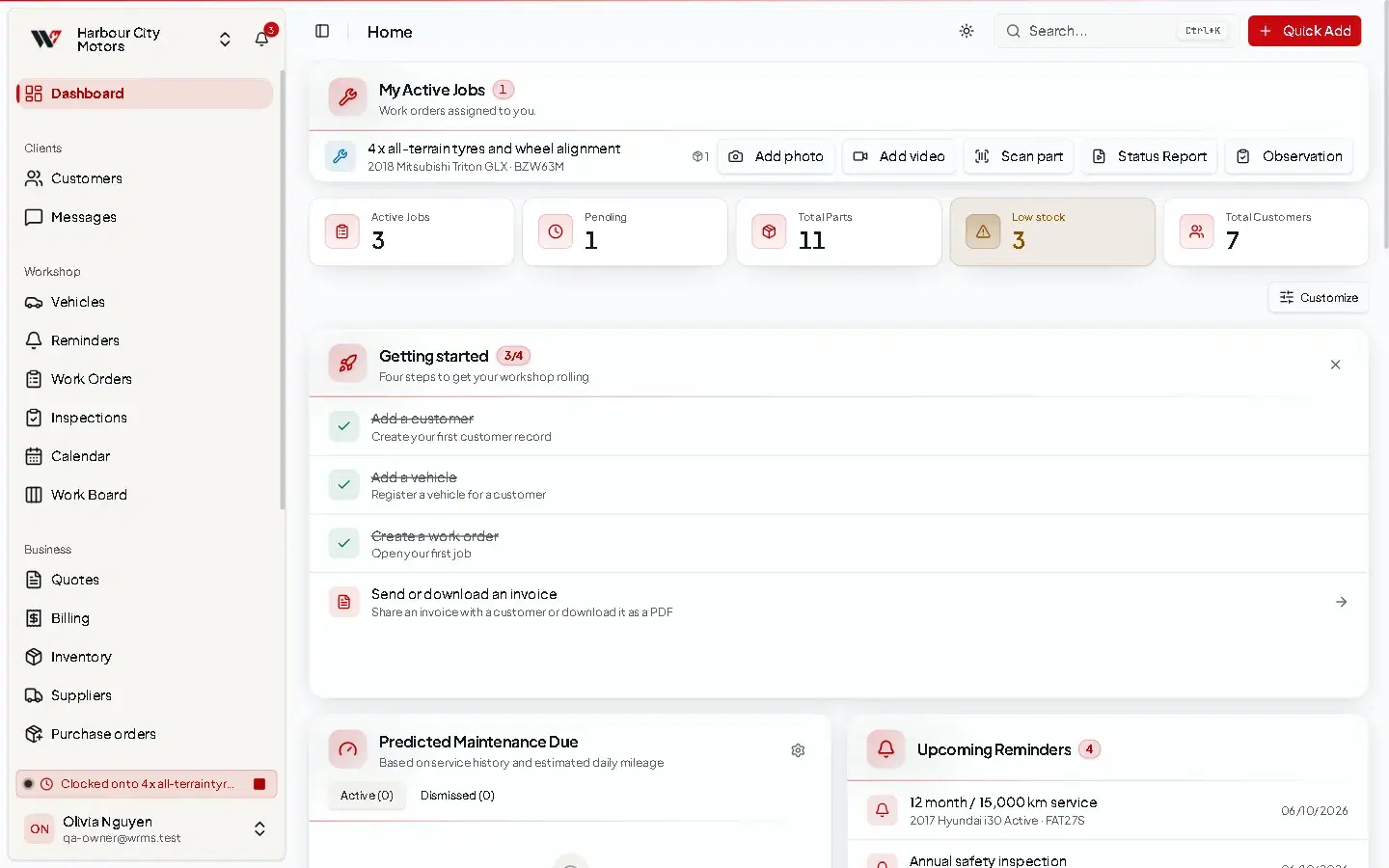
Your home screen in WRMS Pro — today's jobs, what needs attention, and shortcuts to everything else.
The dashboard is what you see after signing in. It pulls together the things that need someone's attention today, so you do not have to go looking for them.
When to use it
- First thing in the morning, to see active jobs and anything waiting on a customer.
- Between jobs, to check for quote responses, new messages and low stock.
- As a technician, to see My Active Jobs and update them from the workshop floor.
What is on it
The top row shows headline numbers: Active Jobs, Pending, Total Parts, Total Customers and Low stock. Below are cards. Which ones you see depends on your permissions and the features your workshop uses.
| Card | Shows |
|---|---|
| Getting Started | The four set-up steps for a new workshop. See First steps checklist. |
| My Active Jobs | Work orders assigned to you. From the card, technicians can Take photo, Add video, Scan part to add a stocked part to the job, and start a Status Report or record an Observation. |
| Active Jobs | Work orders that are not completed or cancelled. |
| Recent Completed | Jobs finished most recently. |
| Quote Responses | Quotes a customer has accepted or asked to change. See Quote approval. |
| Quote Requests | Items a customer asked you to quote from an inspection report. |
| Inspections | Inspections in progress and recently completed. |
| Upcoming Reminders | Reminders coming due. |
| Predicted Maintenance | Vehicles likely to be due for a service (when turned on). |
| Recent Messages | Latest SMS, WhatsApp and Telegram messages. |
| Recent Notifications | The same items as the notification bell. |
| Recent Observations | Issues technicians have noted on vehicles. |
| Recent Activity | Latest changes made by your team. |
| Tire Hotel | Tyre storage at a glance (when the module is on). |
Arrange your dashboard
You can also add your own custom cards: a named table of records with your own filters and columns, such as Jobs waiting for parts or Customers with no email.
Shortcuts available everywhere
- Search — press Ctrl + K or select the search box in the header to find customers, vehicles, work orders and more. Results only include areas you are allowed to see.
- Quick Add — create a work order, customer, vehicle, quote, part or inspection from the header without leaving the page you are on.
- Notification bell — see Notifications.
Permissions
The dashboard needs Dashboard → View. Each card respects the permission for its own area, so a technician without billing access will not see billing figures.
Troubleshooting
See Dashboard problems.
Still need help?
Email support@wrmspro.com or use the contact form. Signed-in users can also send a request from Settings → Support.