

Notifications
The notification bell tells your team about customer responses, due reminders and low stock. Alert settings decide what is also emailed.
WRMS Pro tells your team about things that happen without anyone at a keyboard — a customer accepting a quote at 9 pm, a part running low, a reminder falling due.
The notification bell
Select the bell in the header to open Notifications. You will see, for example:
- a customer accepted a quote or requested changes;
- a customer asked for a quote from an inspection report;
- a customer sent a service request or booked online;
- a job changed hands, was completed, was parked waiting for parts, or went back in progress (when job activity alerts are on);
- reminders that have fallen due (when they are set to notify in the app);
- parts that have gone low (when low stock alerts are on).
Select a notification to go to the record. Use Mark all read to clear the count, or Delete to remove one. The dashboard's Recent Notifications card shows the same list.
Notifications belong to the workshop, so everyone who can open the bell sees the same list.
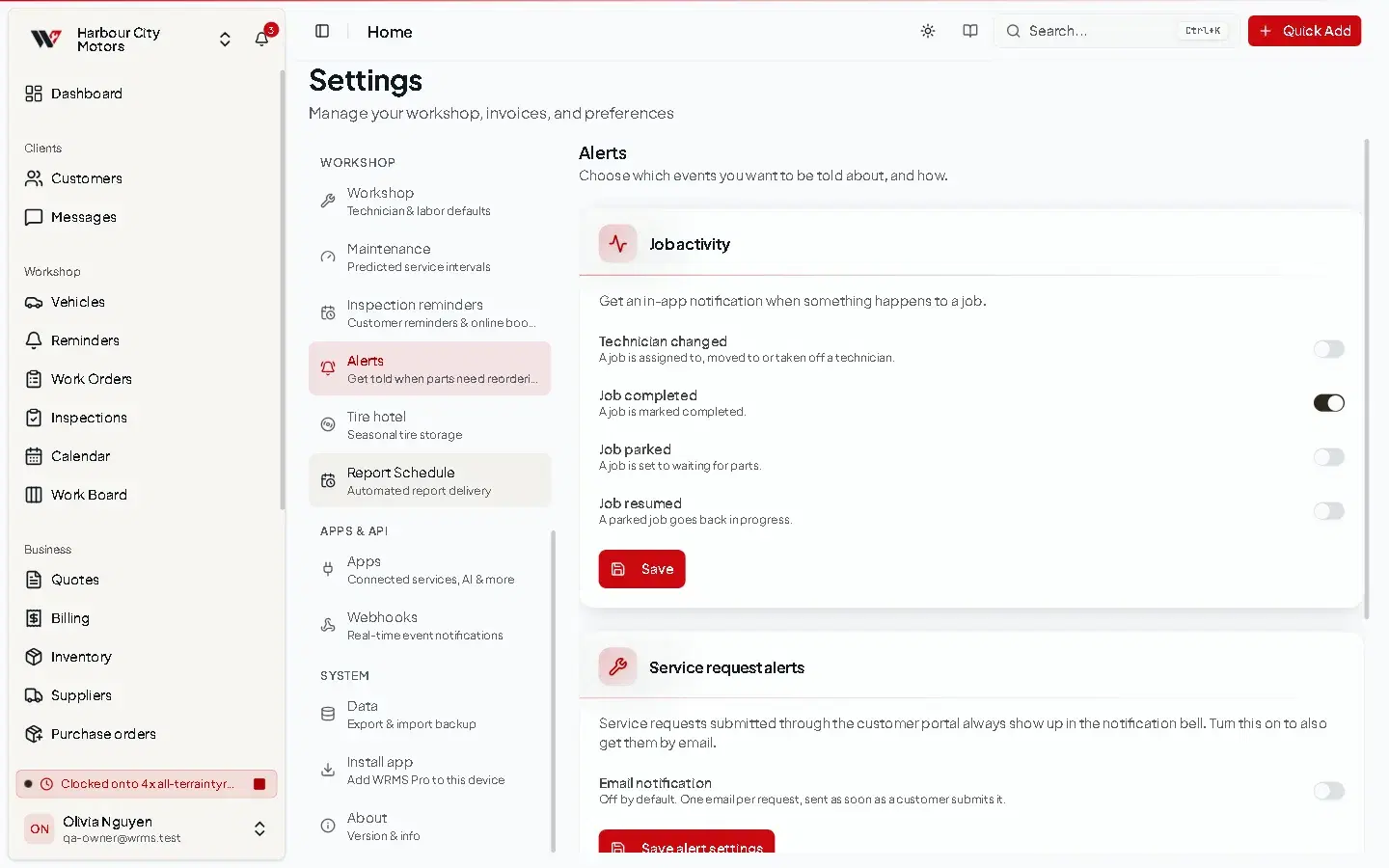
Alert settings
Settings → Alerts decides which events are also sent by email.
| Alert | Options |
|---|---|
| Job activity | In-app notifications, each switched on separately: Technician changed (a job is assigned to, moved to or taken off a technician), Job completed, Job parked (set to waiting for parts) and Job resumed (a parked job goes back in progress). |
| Low stock alerts | Off by default. In-app notification and/or email digest, minimum hours between emails, default reorder point, Check now. See Low stock. |
| Service request alerts | Always in the bell; optionally emailed to addresses you list (or all Owners and Admins if left empty). Service requests come from the customer portal and online booking. |
Reminder emails are chosen per reminder. See Reminders and scheduled messages.
Permissions
Changing alert settings needs Settings → Edit.
Still need help?
Email support@wrmspro.com or use the contact form. Signed-in users can also send a request from Settings → Support.