

Users
Invite team members, change their access, cancel invitations and remove people who have left.
Everyone who signs in to your workshop is a member. Manage members in Settings → Team.
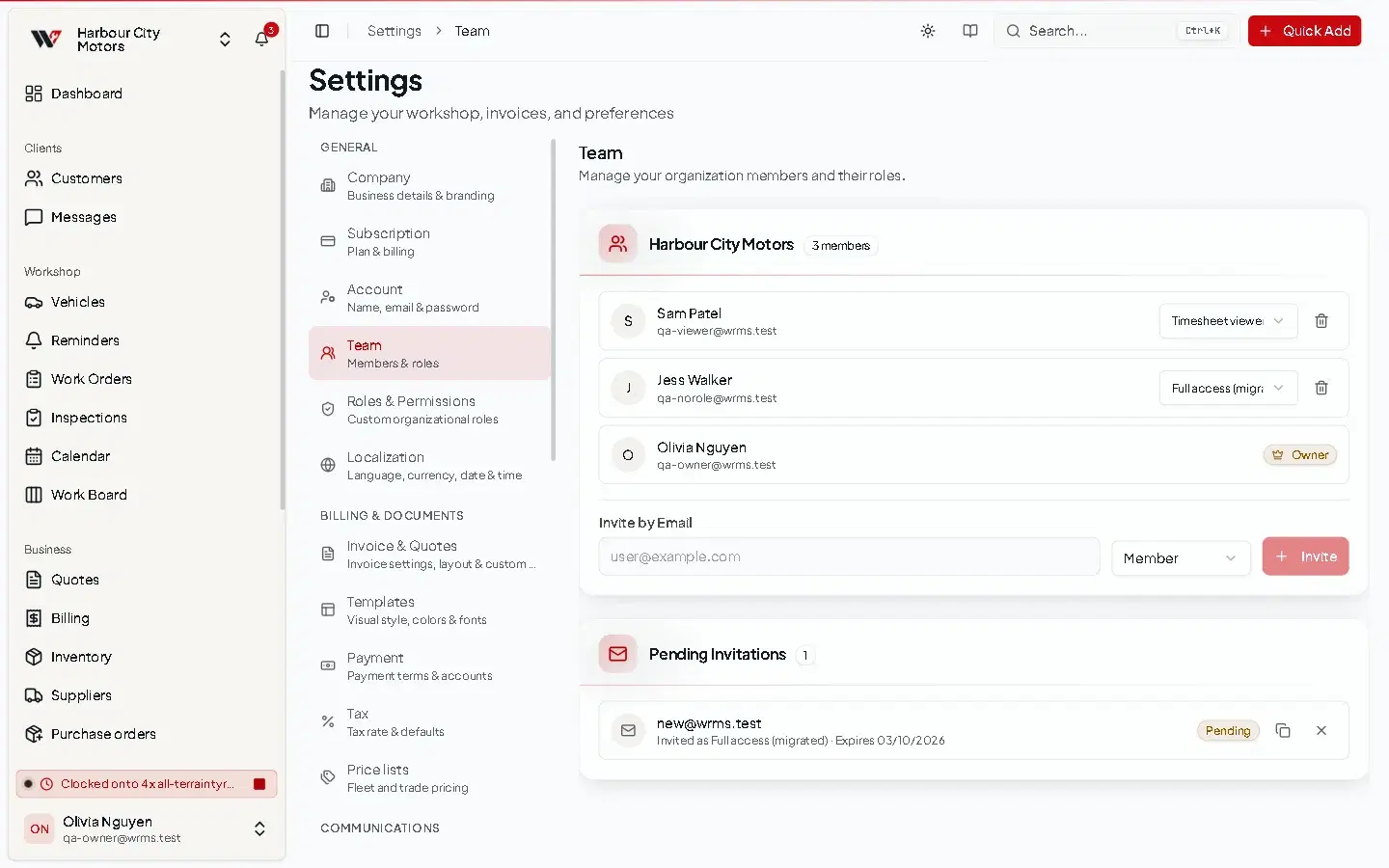
Invite a team member
- If the person already has a WRMS Pro account, they are added straight away.
- If not, WRMS Pro offers Send Invitation. They receive an email with a link that is valid for seven days. See Joining by invitation.
Pending invitations
Invitations not yet accepted are listed under Pending Invitations, with the role they were invited as and the expiry date.
- Copy invite link — to send the link another way, for example by text.
- Cancel Invitation — the link stops working.
Change someone's access
In Settings → Team, change the member's level or custom role. The change applies on their next action in WRMS Pro; they do not need to sign out.
Remove someone
Remove the member from Settings → Team. They lose access to your workshop immediately. Their past work — jobs, notes, audit log entries — stays in your records.
If they were also set up as a technician, remove or edit the technician separately.
How many users can I have?
Each plan includes a number of users, and more can be added for an extra monthly charge. See Subscription and plans.
Permissions
Managing the team needs Owner or Admin, or a custom role with Settings → Edit.
Still need help?
Email support@wrmspro.com or use the contact form. Signed-in users can also send a request from Settings → Support.