

Roles and permissions
Create custom roles such as Technician or Front desk, and choose exactly which areas each role can view, create, edit and delete.
Permissions decide what each person sees in the menu and what they can change. WRMS Pro combines a built-in level with an optional custom role.
Built-in levels
| Level | Can do |
|---|---|
| Owner | Everything, including subscription and billing for WRMS Pro itself. The person who created the workshop. |
| Admin | Everything. |
| Member | Whatever their custom role allows. With no custom role, nothing — see the note below. |
Every Member needs a role
A Member who has not been given a custom role can open WRMS Pro but cannot see or change anything until an Owner or Admin assigns one. Choose a role when you invite someone, or assign one afterwards in Settings → Team.
People who were members before this rule was introduced were given a role called Full access (migrated), so nobody lost access. Replace it with a narrower role if they do not need everything.
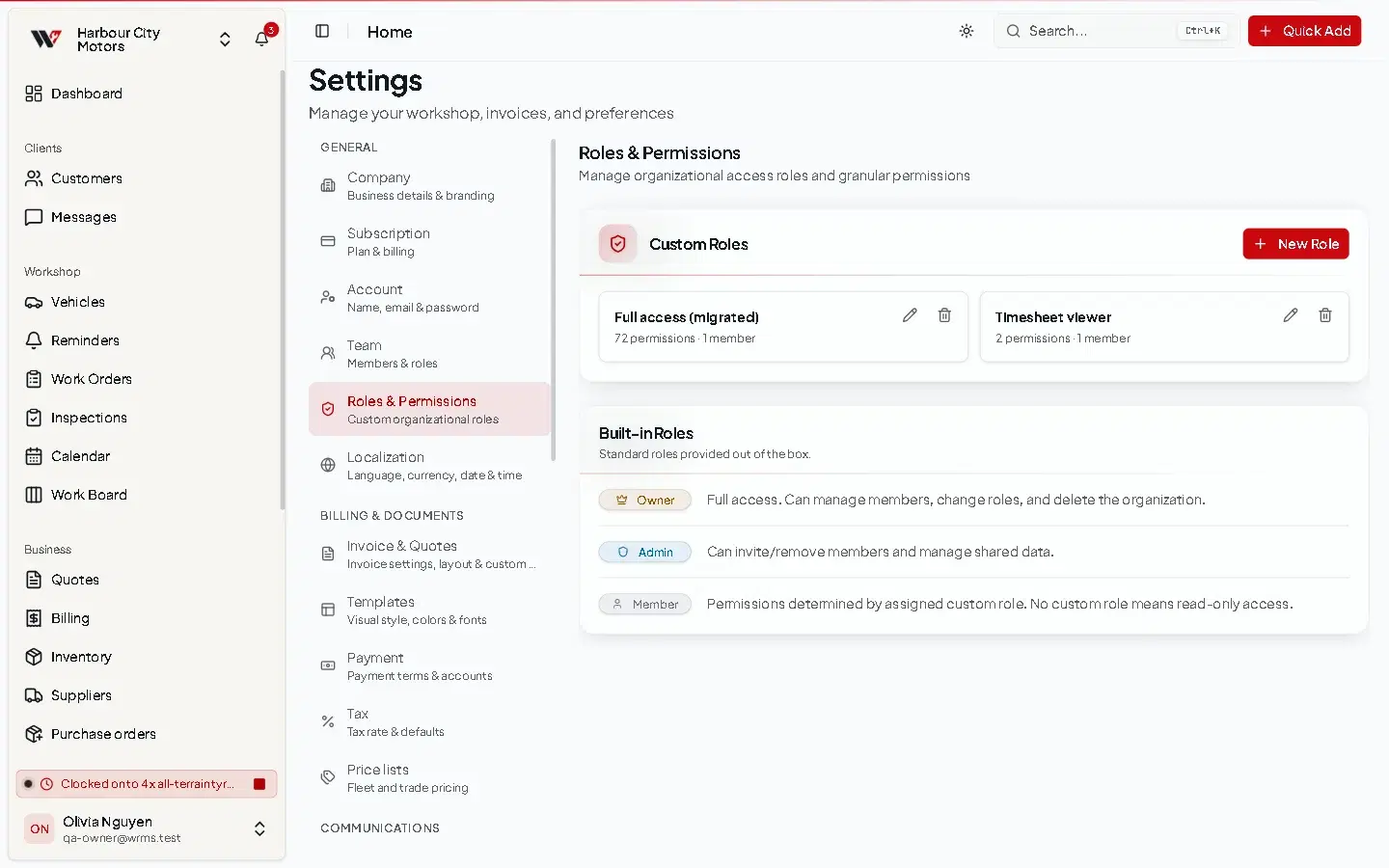
Custom roles
A custom role is a named set of permissions, such as Technician, Front desk or Accounts. You can also tick Full admin access (bypasses all permission checks) on a role to make it equivalent to Admin.
Create a role
Changes take effect on each person's next action — nobody needs to sign out.
Delete a role
A role cannot be deleted while anyone holds it. Move those people to another role first. This prevents people silently gaining full access when their role disappears.
What each permission controls
| Area | Permissions available |
|---|---|
| Dashboard | View |
| Vehicles | Create, View, Edit, Delete. View also shows Reminders in the menu. |
| Customers | Create, View, Edit, Delete. View also shows Messages. Edit also covers price lists. |
| Work Orders | Create, View, Edit, Delete. View also shows the Calendar. |
| Services | Create, View, Edit, Delete. Used by parts of the work order screen, including the time clock. Keep it in line with Work Orders. |
| Quotes | Create, View, Edit, Delete |
| Billing | Create, View, Edit, Delete. Recording and deleting payments. |
| Invoices | Create, View, Edit, Delete, Approve / finalise, Void |
| Inventory | Create, View, Edit, Delete, Adjust stock |
| Suppliers | Create, View, Edit, Delete |
| Purchasing | Create, View, Edit, Delete purchase orders, Send / approve POs, Receive goods |
| Labor Presets | Create, View, Edit, Delete |
| Inspections | Create, View, Edit, Delete |
| Tire Hotel | Create, View, Edit, Delete, Manage storage layout |
| Reports | View, Schedule reports, Edit report schedules, Delete report schedules |
| Work Board | Create, View, Edit, Delete |
| AI Assistant | View |
| Settings | View, Edit. View also shows the Audit Log. Edit allows changing settings, the team, webhooks and the WRMS Pro subscription. |
Menu items for areas a person cannot View are hidden, and global search only returns records from areas they can view.
Example roles
These are starting points, not built-in roles. Adjust them to your shop.
- Dashboard: View
- Vehicles: View
- Customers: View (to see who the car belongs to)
- Work Orders and Services: View, Edit
- Inspections: Create, View, Edit
- Work Board: View
- Inventory: View
- Labor Presets: View
Troubleshooting
- Someone cannot see a menu item — their role lacks View for that area.
- Someone can see too much — their role may be Full access (migrated) or an admin role. See Access and permissions.
- Someone can see nothing at all — they have no custom role yet. Assign one in Settings → Team.
Still need help?
Email support@wrmspro.com or use the contact form. Signed-in users can also send a request from Settings → Support.