

Technicians and work bays
Set up the people and places you plan work around, and record how long each job really took.
WRMS Pro plans work around two things: technicians (who does it) and work bays (where it happens). Both appear as lanes on the Work Board.
Technicians
A technician is someone you assign jobs to. They do not need a WRMS Pro login — an apprentice or a subcontractor can be a technician. If they do log in, link the technician to their account.
Add a technician
You can also add technicians while filling in a work order (+ Add New in the technician picker), and choose a Default Technician Name for new jobs in Settings → Workshop. When you set a default, WRMS Pro offers to assign that technician to existing jobs that have none.
Remove a technician
Edit the technician and delete them. Their existing assignments are kept on the jobs, and time they recorded stays on invoices and in reports.
Work bays
A work bay is a place: a hoist, a ramp, an alignment rack, a wash bay.
Deleting a bay does not unschedule its jobs; they move to the no-bay lane.
Track time on a job
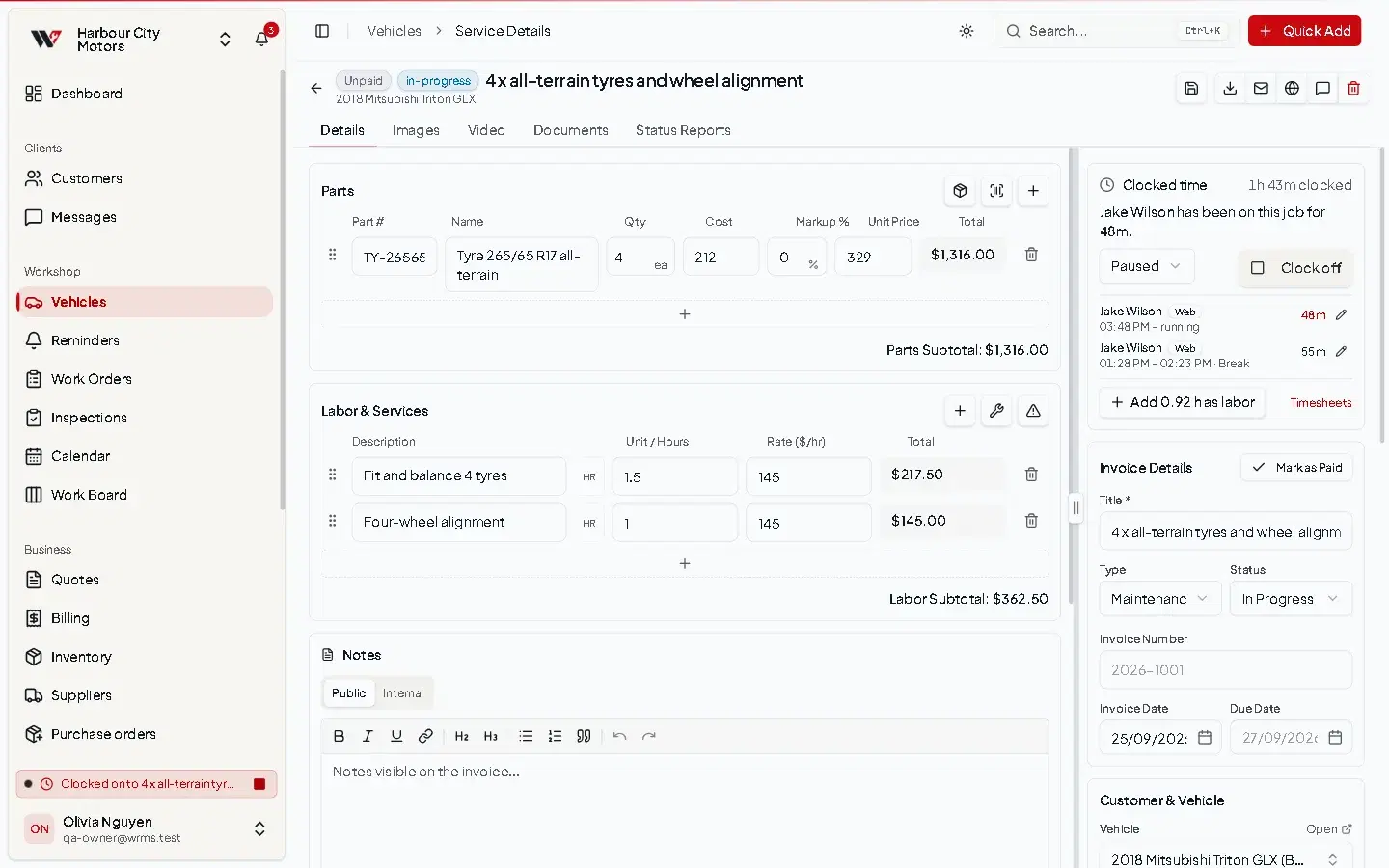
Labour lines on a work order are what you charge. The time clock records what the job actually took, so you can compare the two.
- A technician can have only one clock running at a time. A running-clock indicator shows in the header while you are clocked on.
- Each stretch of work is kept separately, so a job worked, paused for lunch and resumed shows as two entries.
- You cannot clock on to a job that is Completed or Cancelled. Reopen it first.
The Technicians report uses this clocked time to show utilisation. See Reports.
Permissions
| Action | Permission |
|---|---|
| Add technicians or bays | Work Board → Create |
| Edit them | Work Board → Edit |
| Delete them | Work Board → Delete |
| Clock on and off | Services → Edit |
Still need help?
Email support@wrmspro.com or use the contact form. Signed-in users can also send a request from Settings → Support.