

Online booking
Let customers book a service from your website, and book a time straight from a reminder email.
WRMS Pro gives your workshop two ways for customers to book without phoning:
- Your online booking page — a public page anyone can use, for example from your website or Facebook page. Each booking arrives as a service request for you to confirm.
- Booking links in reminder emails — when a vehicle reminder comes due, the customer's email includes a link to pick a free time. That booking goes straight onto the Work Board.
Your online booking page
Before you start
The booking page is part of the customer portal: it is open only while Enable customer portal is on in Settings → Customer Portal.
Share the booking page
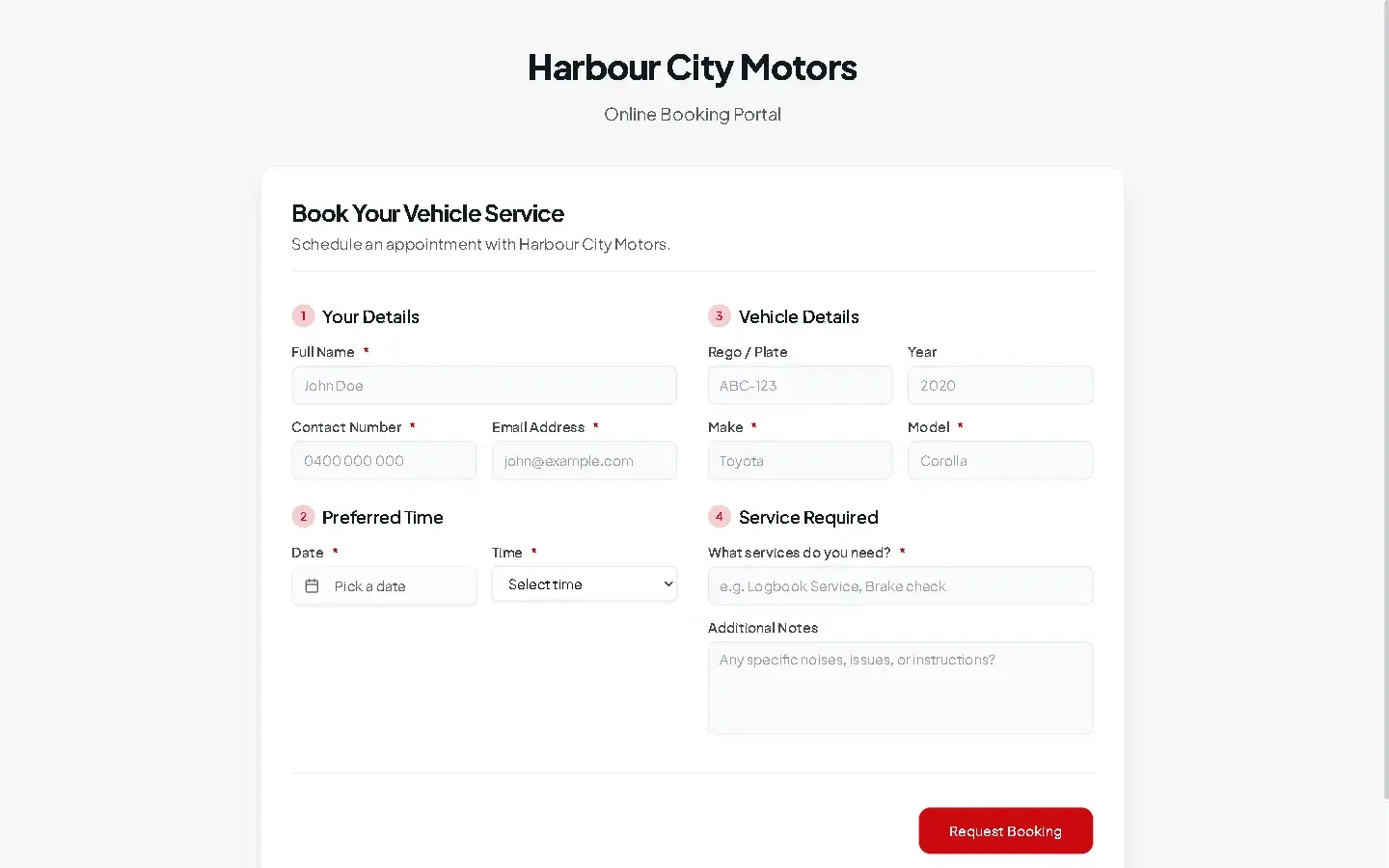
What the customer fills in
- Your Details — full name, contact number and email address.
- Preferred Time — a date and a time.
- Vehicle Details — rego, year, make and model.
- Service Required — what they need, such as Logbook service, brake check, and any Additional Notes.
They select Request Booking and see a confirmation. The page is protected by a security check, so automated spam is blocked.
What happens next
- If the email address or phone number matches an existing customer, the booking is added to that customer. Otherwise WRMS Pro creates the customer, and the vehicle if it is new.
- The booking arrives as a service request: in your notification bell, on the Service Requests dashboard card and on the customer's Requests tab.
- A booking is a request, not a confirmed appointment. Contact the customer to confirm the time, then select Create Work Order on the request and schedule the job on the Work Board.
Booking links in reminder emails
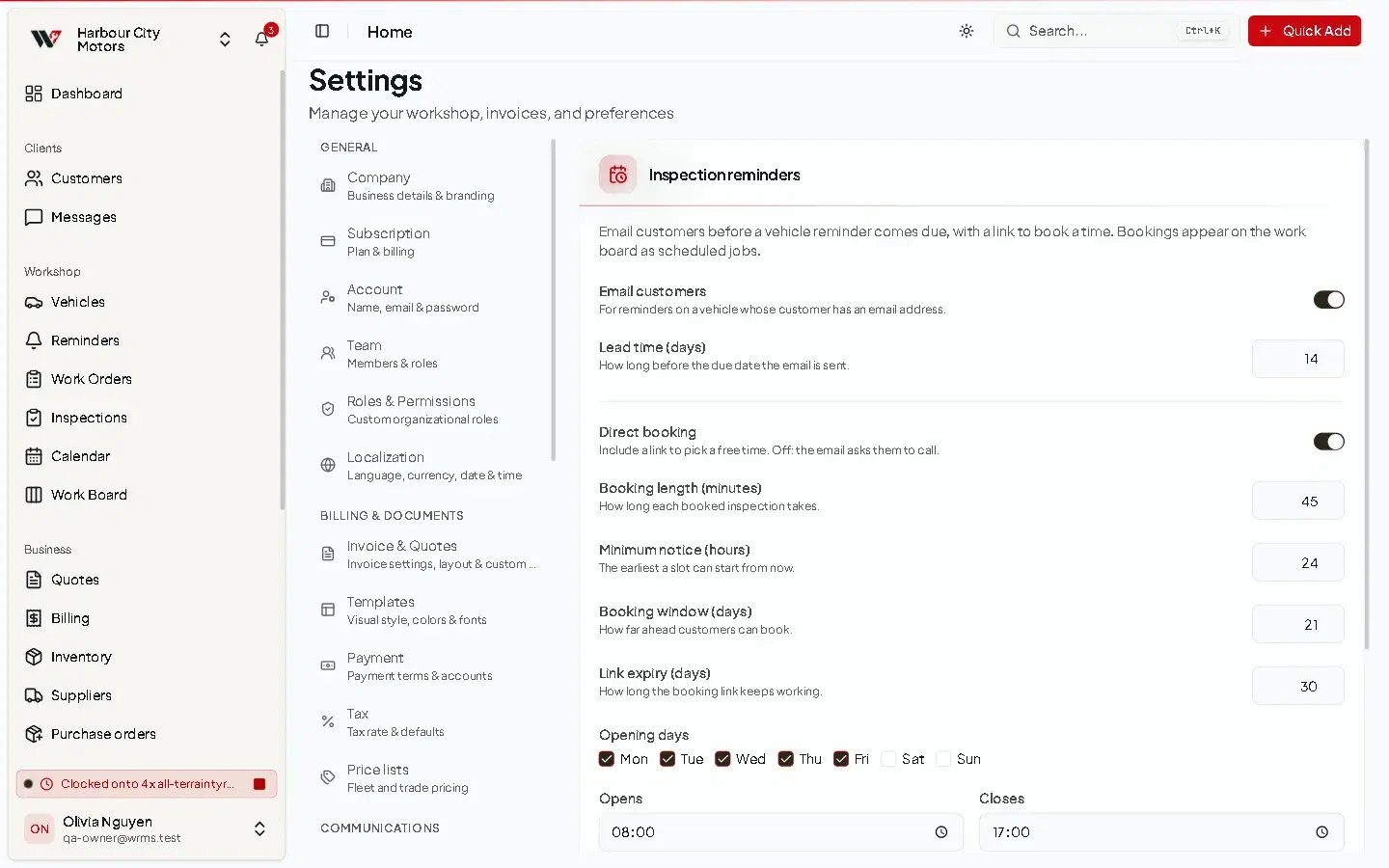
When a reminder on a vehicle comes due, WRMS Pro can email the customer with a link to book a time that suits them. The booked job appears on the Work Board as a scheduled job.
Set it up
Customers are offered only free times, based on your opening hours and your technicians' existing jobs. Each link can be used once. After that, or after it expires, the page says the link has expired or has already been used.
Troubleshooting
- The booking page shows "Page Not Found" — the customer portal is switched off. Turn on Enable customer portal.
- Customers say no times are available — check Opening days, Opens and Closes, the Booking window and Minimum notice, and that at least one technician is active.
- Reminder emails are not being sent — check the customer has an email address, Email customers is on, and your email settings work.
Still need help?
Email support@wrmspro.com or use the contact form. Signed-in users can also send a request from Settings → Support.