

Customer portal
Give customers their own page where they sign in to see their vehicles, invoices, quotes and inspections, and send you service requests.
The customer portal is a page for your customers, branded with your workshop's name, logo and contact details. A customer signs in with their email address and can then see everything you have done for them, and ask for more work, without calling you.
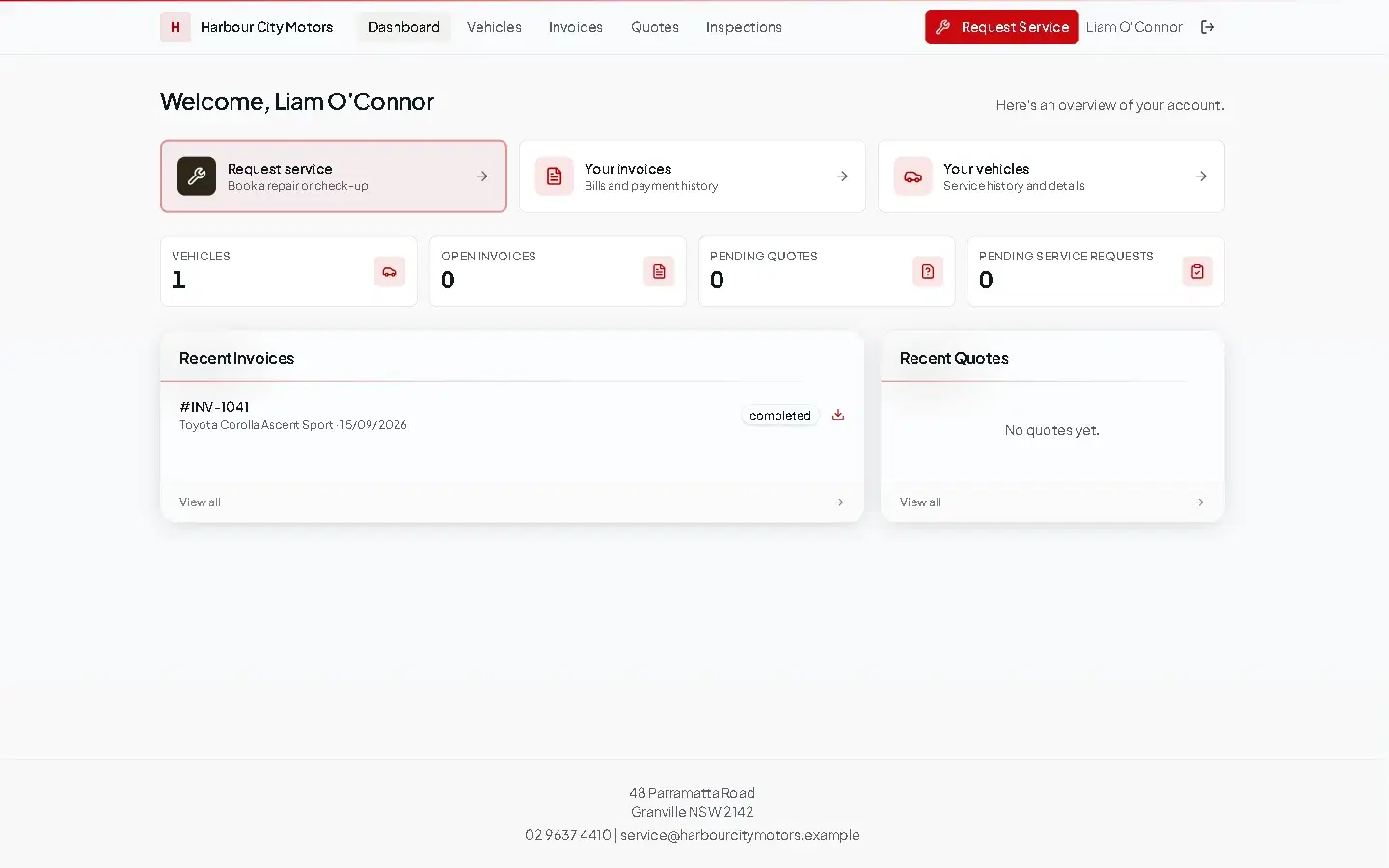
What customers can do
| In the portal | What they see |
|---|---|
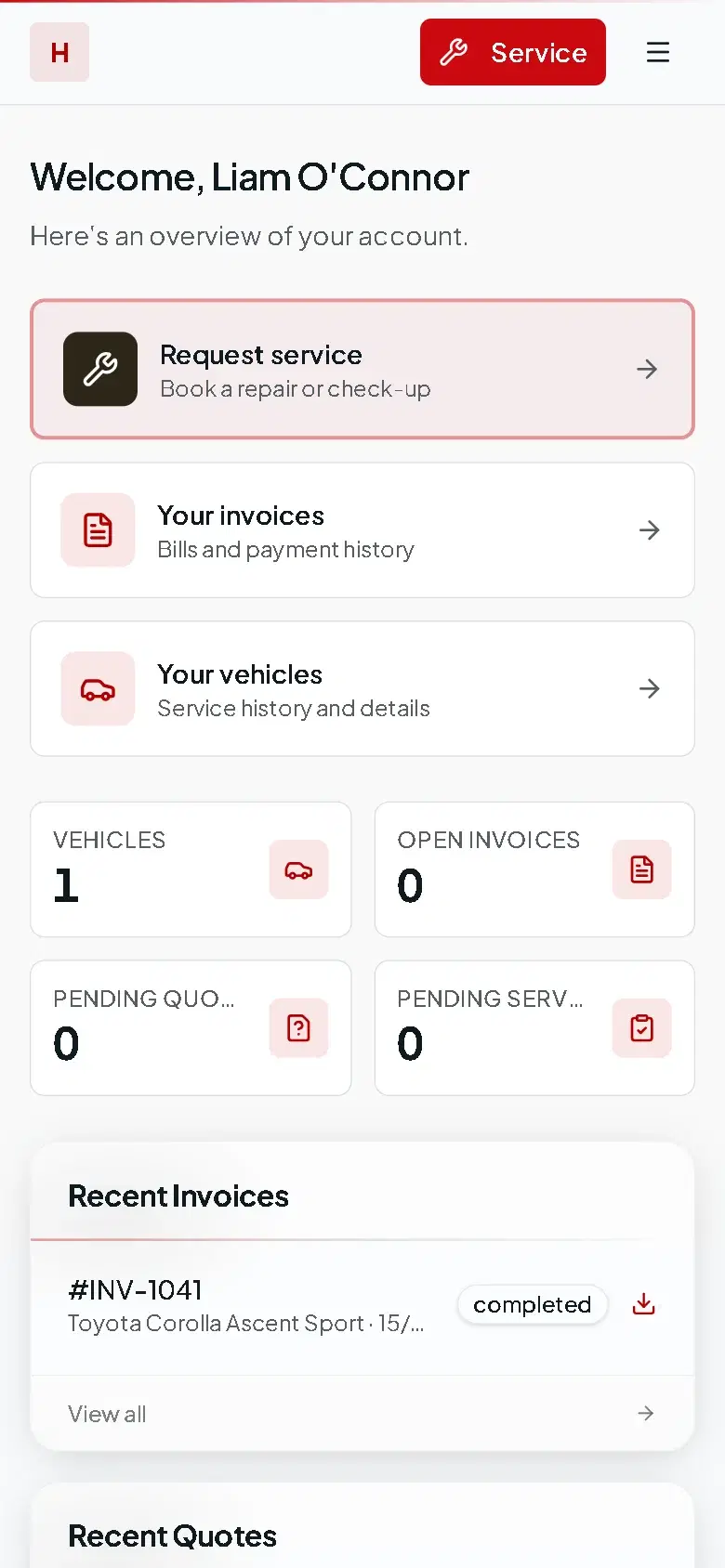
| Dashboard | Their vehicles, open invoices, pending quotes and pending service requests at a glance. |
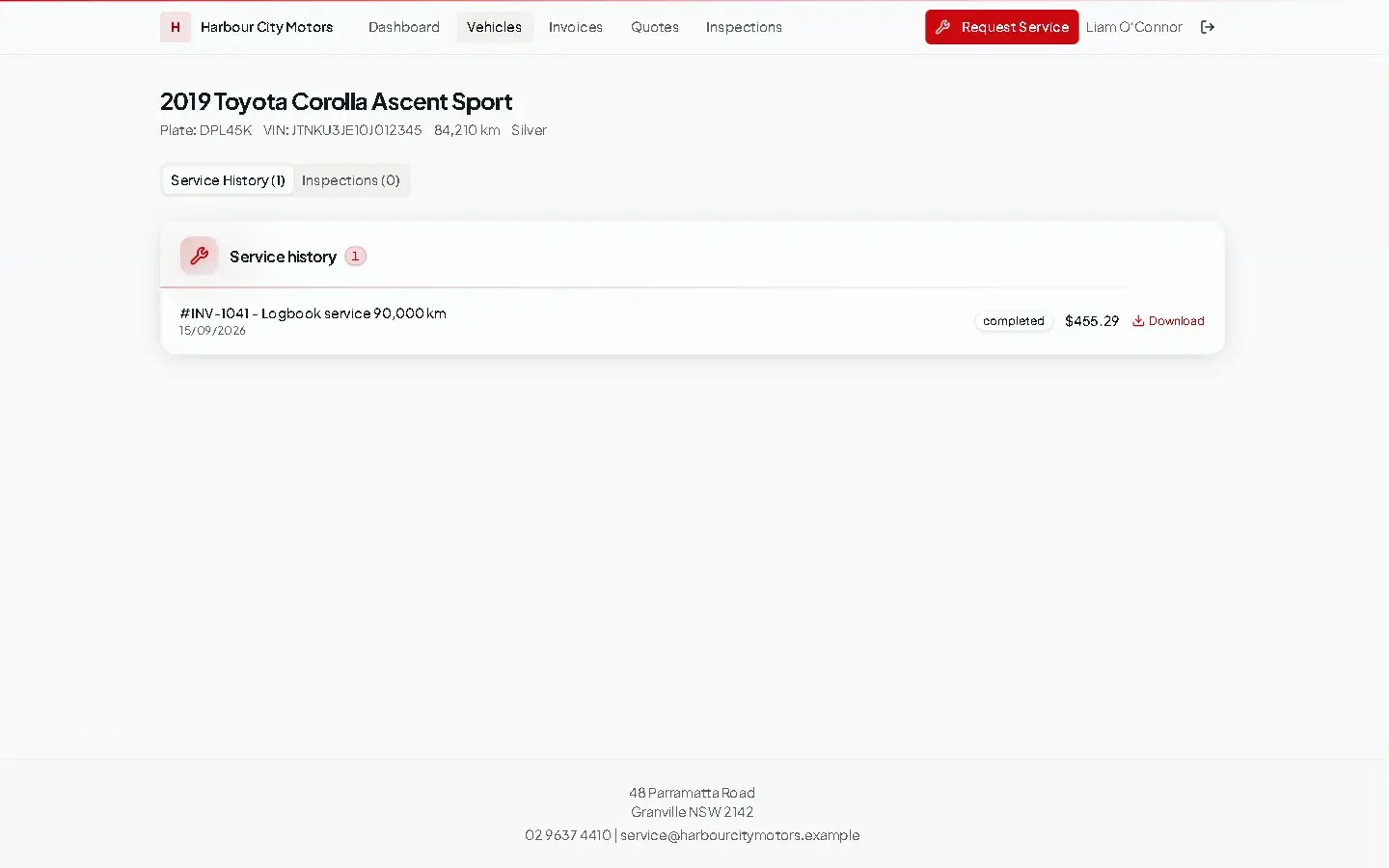
| Vehicles | Each vehicle with its Service History and Inspections, and a Download link for each invoice. |
| Invoices | Every invoice with its date, amount and payment state (paid, partial, unpaid or cancelled). |
| Quotes | Quotes you have sent, with status and Valid Until date. |
| Inspections | Inspection reports with a count of good, fair and poor items. |
| Request Service | A form to ask for a repair or check-up on one of their vehicles. |
The portal is included on every paid plan.
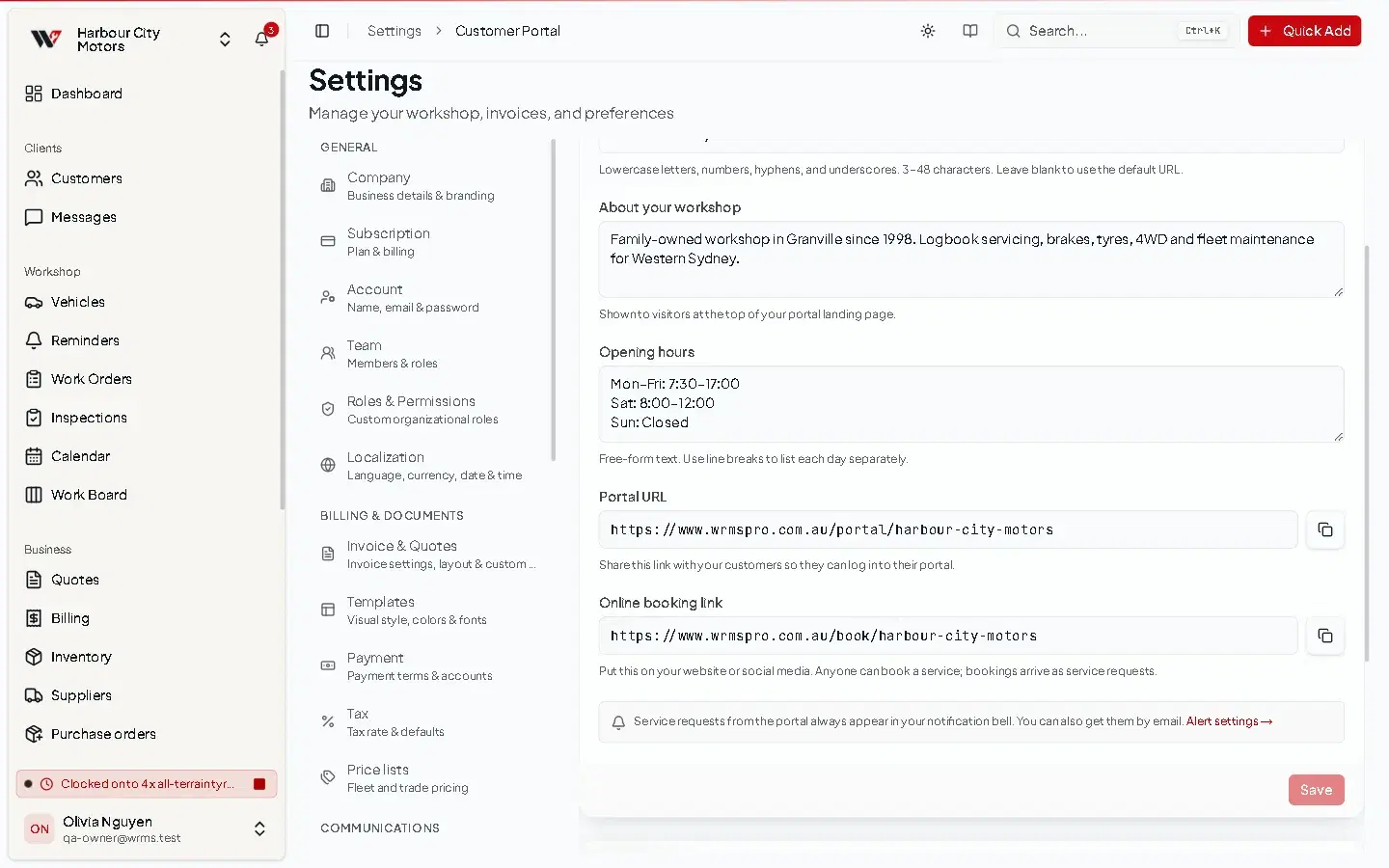
Switch the portal on
harbour-city-motors, so the address is easy to read. Use lowercase letters, numbers, hyphens and underscores, 3 to 48 characters. Leave it blank to use the default address.The front page shows your workshop's address, phone and email from Settings → Company, with a Get directions link. Check them before you share the link.
How customers sign in
There are no passwords. The customer enters their email address and selects Send sign-in link. WRMS Pro emails them a link that signs them straight in. The link expires after 15 minutes.
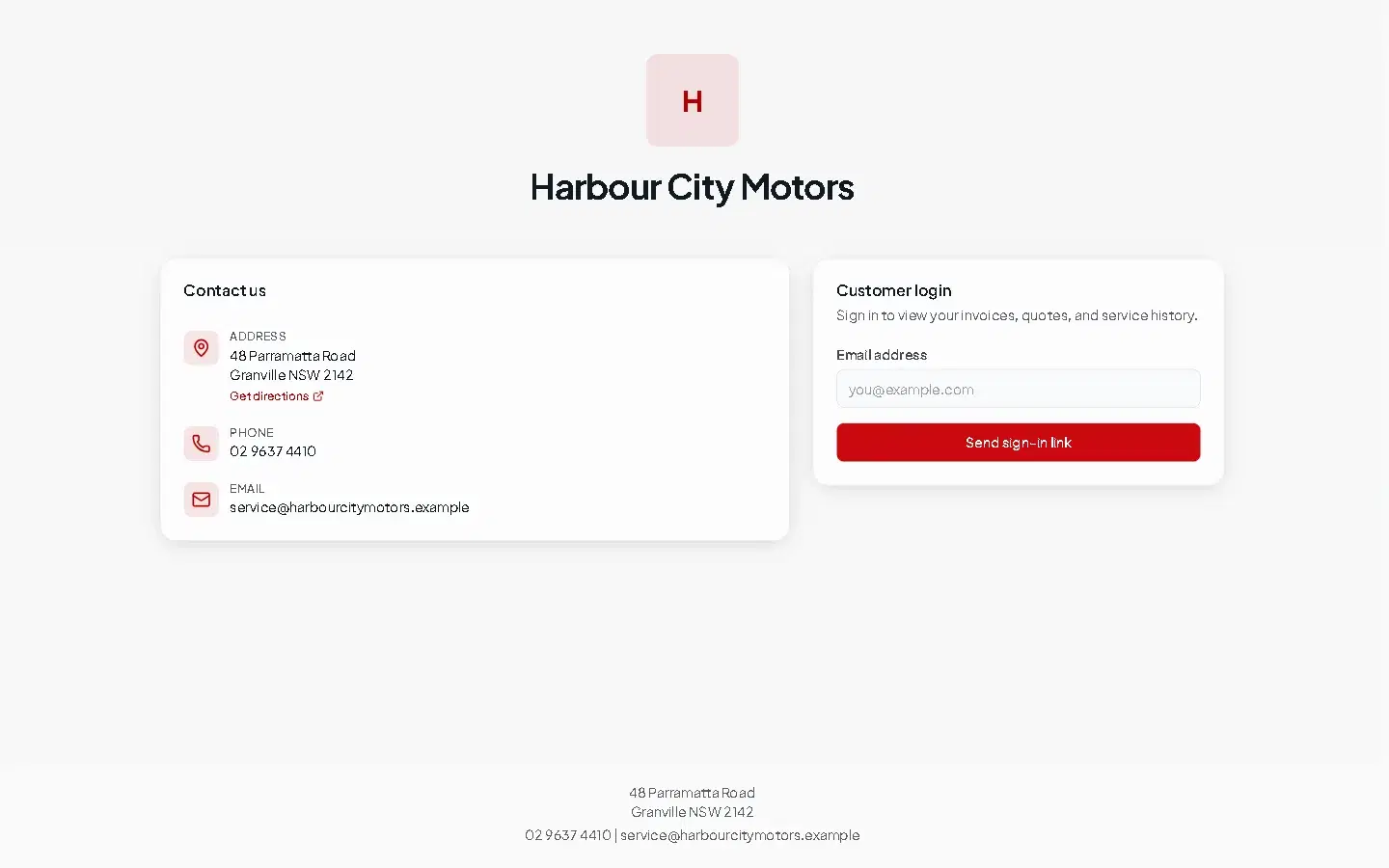
- The email address must match the one on the customer's record in WRMS Pro. A customer without an email address cannot sign in, so add one in Customers first.
- If you have set up SMS, customers can also choose SMS and sign in with a 6-digit code sent to their phone. Phone numbers without a country code use the Default country code from Settings → Localization.
- For privacy, the page always says a link was sent, even when the email address is not on file.
Service requests
When a customer sends a request from Request Service, it appears:
- in your notification bell, and by email if you turn that on in Settings → Alerts;
- on the Service Requests card on the dashboard;
- on the customer's page, under the Requests tab.
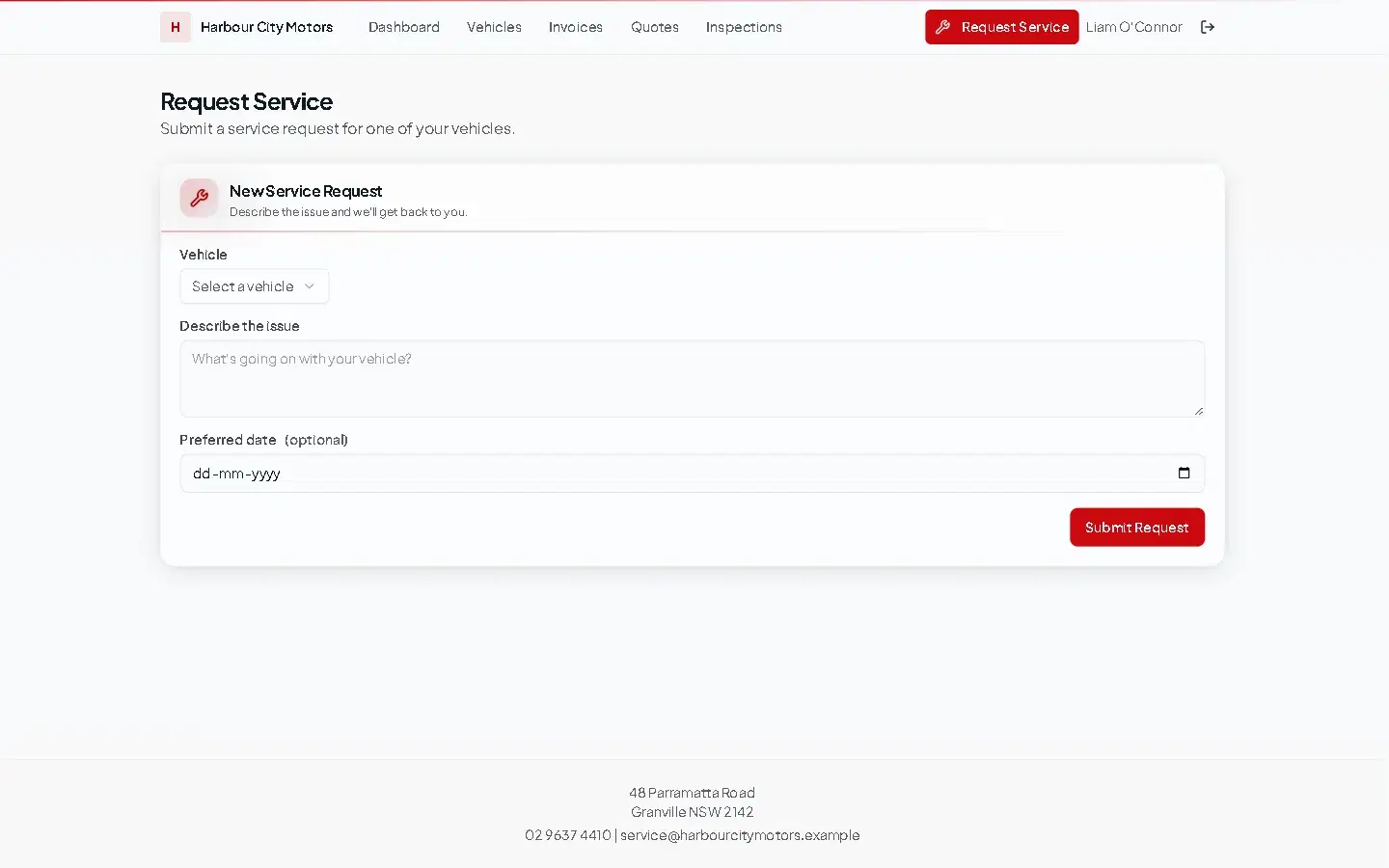
The customer chooses a vehicle, describes the issue and can give a Preferred date. If their vehicle is not listed they can choose My vehicle isn't listed and enter its make, model, year and plate.
On the Requests tab you can:
- Create Work Order — turns the request into a work order for that vehicle. The request is marked Work Order Created and links to the job.
- Contact Customer — message them about the request.
- Notes — add a note about the request.
- Dismiss — close a request you will not act on.
Customers can read request notes
Notes you add to a service request appear in the customer's portal as Staff notes. Keep internal comments on the work order or the customer record instead.
Turn the portal off
Turn off Enable customer portal. The portal address then shows Portal Not Available and customers can no longer sign in. The online booking page closes too. Nothing is deleted.
Troubleshooting
- A customer did not get the sign-in email — check the email address on their record, ask them to look in junk mail, and check that your email settings work.
- "This portal does not exist" — the address is wrong. Copy it again from Settings → Customer Portal.
- A customer sees no vehicles — the vehicles are not linked to their customer record. Open the vehicle and set its customer.
Still need help?
Email support@wrmspro.com or use the contact form. Signed-in users can also send a request from Settings → Support.